Lightweight WordPress Analytics: I Measured Them All
I downloaded eight WordPress analytics tools and weighed every byte. The lightest tracker isn't the one I sell. It belongs to Plausible, not Clickport.
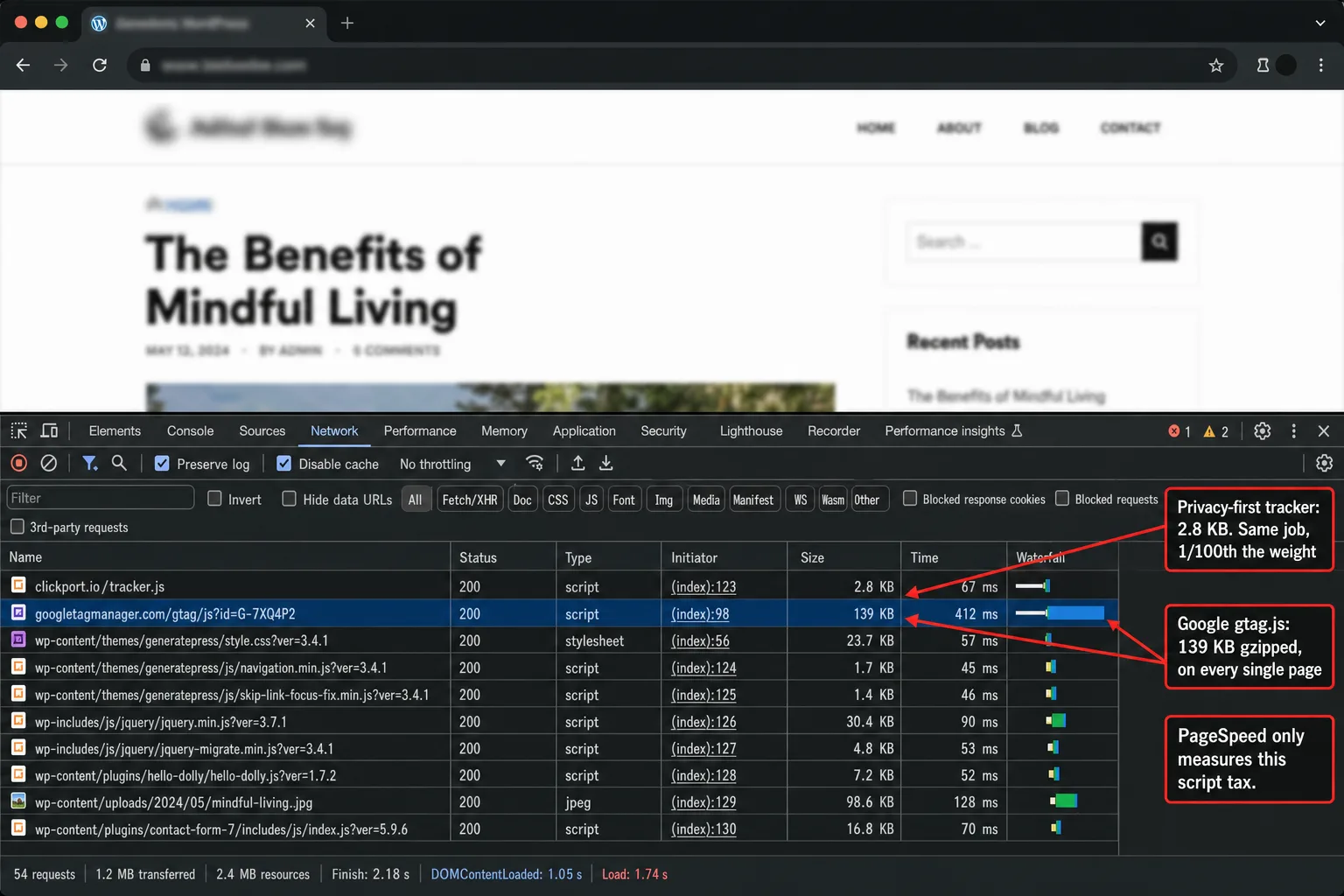
The smallest plugin belongs to Koko Analytics. The heaviest plugin, by a long way, is MonsterInsights at 27.8 megabytes. And the heaviest script of the lot is the one Google ships itself: gtag.js at 139 KB gzipped, roughly a hundred times the size of any privacy-first tracker. In plain English: one Google script outweighs the whole category.
Search for "lightweight WordPress analytics" and you meet the same vendors all claiming the crown. Koko says 500 bytes. Fathom says 2 KB. Independent Analytics says 2 KB inlined. Clickport could say 2.8 KB. Every one of those numbers measures one thing: the JavaScript that hits your visitor's browser. Nobody measures the plugin code your server loads on every request. Nobody measures the database writes on every pageview. Nobody measures the dashboard queries that fire when you open your stats.
So I measured all of it.
One disclosure first. I run Clickport, so I'm not a neutral reviewer. But the numbers below are public, downloadable, and reproducible, and where another tool beats Clickport, I say so. Plausible has a smaller tracker than ours. Koko has a much smaller plugin than ours would ever be. Fathom compresses better. The honest comparison is the only one worth writing.
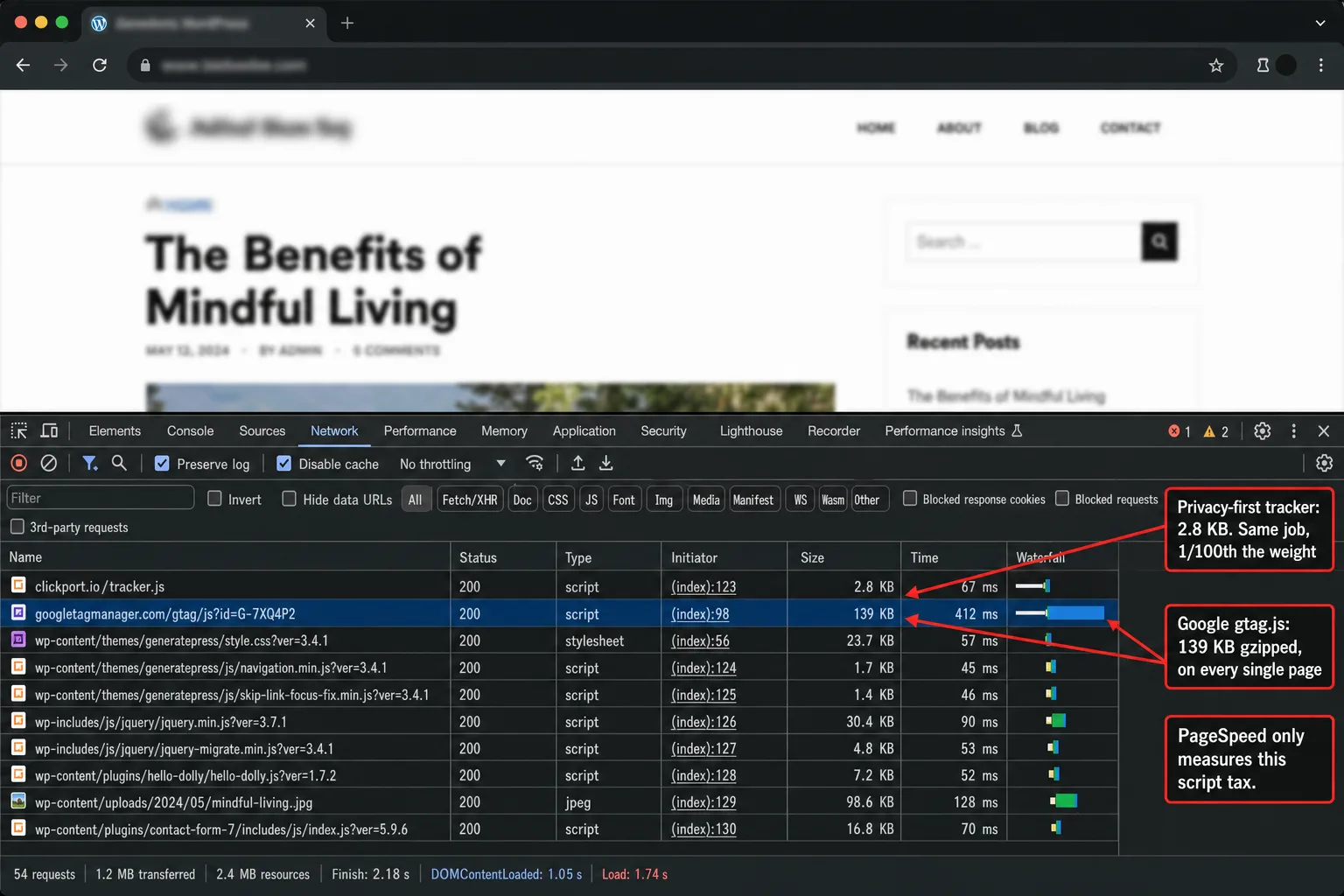
- Plausible has the smallest tracker at 1.3 KB gzipped. Clickport's is 2.8 KB. Fathom is 2.0 KB. Google Analytics 4 is 139 KB, roughly 100 times heavier than any of the privacy-first scripts.
- WordPress analytics plugins range from 203 KB (Koko Analytics) to 27.8 MB (MonsterInsights). Google Site Kit is 5.1 MB. Independent Analytics ships 2,516 PHP files in a 7.7 MB archive.
- Self-contained WordPress plugins (Koko, Slimstat, Independent Analytics, Statnive, WP Statistics) write to your database on every pageview. Script-only tools (Plausible, Fathom, Umami, Clickport, Simple Analytics) don't touch your database.
- The 'lightweight' claim is contested by seven tools and measures only the tracker script. None of the existing comparisons measure plugin code weight, database writes, or admin dashboard query cost.
- Clickport's total footprint on a WordPress site is a 2.8 KB script tag and zero PHP, with no plugin install required. The plugin path exists for one-click setup but is optional.
What does "lightweight" actually mean for WordPress analytics?
The word gets used three different ways, sometimes in the same sentence.
The first is tracker bytes: the JavaScript that runs in your visitor's browser. It's the only thing PageSpeed Insights can see from the outside. So it's the number every vendor leads with.
The second is plugin code weight: the PHP that WordPress loads on every request to your site. PageSpeed never sees it. Your server feels it on every boot. A plugin can ship a tiny tracker and still drag your site down through megabytes of PHP.
The third is per-request overhead: the work your site does on every pageview. Database writes. Filter hooks. Admin-bar queries. This is the quiet stuff that makes wp-admin feel slow at three months even though nothing visible changed.
Most "lightweight" claims cover only the first one. You read "our tracker is 2 KB" and you assume the rest is light too. It isn't. Measure all three and the ranking shifts.
There are three kinds of tool in the WordPress analytics space.
Script-only SaaS tools: Plausible, Fathom, Umami, Clickport, Simple Analytics. The tracking is just a script tag. You can add a WordPress plugin for convenience, but the data collection itself is a few KB of JavaScript and one network request. No PHP overhead. No database write. Nothing to slow your admin.
WordPress-native plugins: Koko Analytics, Slimstat, Independent Analytics, Statnive, WP Statistics. The plugin stores everything inside your WordPress database. The tracker bytes might be small. The plugin running behind the scenes is the bigger story.
GA4 wrappers: MonsterInsights, Google Site Kit, ExactMetrics. These are WordPress plugins that wire up Google Analytics 4 for you. The tracker that hits your visitors is Google's gtag.js at 139 KB gzipped. The plugin is bonus weight on top of that.
Measure tracker bytes alone and you can't tell these three groups apart. That's why most "lightweight WordPress analytics" articles end up misleading you.
So for the rest of this piece I weigh four dimensions, not one:
- Tracker bytes (over the wire, gzipped)
- Plugin code weight (PHP code that loads on every request)
- Database writes per pageview (does it touch your DB?)
- Admin dashboard cost (does opening stats slow your wp-admin?)
A genuinely lightweight setup wins on all four. Most tools you'll meet win on one or two.
The trackers, weighed: gzipped bytes that hit your visitor
I downloaded each tracker's production script from its CDN. Then I gzipped it with the same algorithm that browsers and CDNs use. The numbers are from May 2026 and you can reproduce them yourself with curl.
| Tool | Raw bytes | Gzipped | Notes |
|---|---|---|---|
| Plausible | 2,855 | 1,301 | Smallest by a clear margin |
| Fathom | 6,905 | 2,078 | Their "2 KB" claim, verified |
| Umami | 4,625 | 2,249 | Open-source baseline |
| Clickport | 6,446 | 2,849 | Heavier because it tracks engagement |
| Simple Analytics | 7,515 | 3,847 | Slightly heavier compression ratio |
| Google Analytics 4 (gtag.js) | 394,856 | 139,121 | About 100× the privacy-first tools |
Two things I want to flag.
Plausible's tracker is smaller than ours. Their base script focuses on pageviews and basic events. Clickport's tracker is heavier because it also handles engagement (scroll depth, time on page, copy detection, click tracking), goal events (form submissions, custom events), and the engagement score logic. More features, more weight. If pageviews are all you need, Plausible's 1.3 KB is lighter than our 2.8 KB. But the 1.5 KB gap is roughly 0.001% of a typical 200 KB WordPress homepage. Put another way: the choice between the two comes down to features, not bytes.

The gtag.js number is also real. Google Analytics 4's tracker is 139,121 bytes gzipped, downloadable from googletagmanager.com right now. If you're running MonsterInsights, Site Kit, ExactMetrics, or any other plugin that wires up GA4, this is the script your visitors download. The plugin sits on your server. The 139 KB hits every visitor's browser, every page, every time. In plain English: the plugin is the small half.
Koko Analytics claims a 500-byte tracker. I couldn't verify this from outside, because their plugin embeds the script inline rather than serving it from a public URL. But the figure fits their architecture: Koko writes everything to your local WordPress database with no remote endpoint, so the script can stay tiny. I'll take their number on faith. It's smaller than ours.
Independent Analytics also embeds the script inline and claims 2 KB. Same constraint, same trust. Statnive doesn't publish a number I could find, but based on the plugin code it lands in the 1 to 3 KB range.
So here's the takeaway. The script-tag category (Plausible, Fathom, Umami, Clickport, Simple Analytics) is clustered tightly between 1 and 4 KB gzipped. Which means differences inside that range don't matter for Core Web Vitals. The gap between that range and gtag.js does.
Put another way: for any privacy-first tool, the tracker adds less to your page than a single low-quality image. The numbers that move the needle are in the next sections.
The plugins, weighed: PHP code Google never sees
PageSpeed Insights tests what a visitor's browser sees. It doesn't test what your WordPress server has to load on every request. A plugin can be tiny on the wire and gigantic on disk. Your server still has to read, parse, and hold that PHP in memory every time WordPress boots.
I downloaded the latest stable .zip of each WordPress-native analytics plugin from wordpress.org. Here are the file sizes:
| Plugin | .zip size | PHP files | Files writing DB |
|---|---|---|---|
| Koko Analytics | 203 KB | 84 | 7 |
| Statnive | 1.7 MB | 182 | 9 |
| Google Site Kit | 5.1 MB | not unpacked | wraps GA4 |
| WP Slimstat | 5.7 MB | 610 | 10 |
| Independent Analytics | 7.7 MB | 2,516 | 50 |
| WP Statistics | 8.2 MB | 737 | 14 |
| MonsterInsights (free) | 27.8 MB | not unpacked | wraps GA4 |
A few things stand out.
MonsterInsights is 27.8 megabytes of PHP code in its free version. That's the plugin that ships with the "free" label on wordpress.org. The Pro version is heavier still. Here's the perspective that lands it: the entire WordPress core, the CMS itself and not just an analytics plugin, is around 25 MB. In plain English: MonsterInsights ships more code than WordPress.
Koko Analytics is the lightest of the bunch at 203 KB. In plain English: about one-twentieth the size of Site Kit. About one-hundred-and-thirtieth the size of MonsterInsights. Their architecture is genuinely minimal: a small PHP plugin, a tiny inline tracker, and a local WordPress database table.
Independent Analytics is 7.7 MB and ships 2,516 PHP files. Translation: that's an unusual number. Most WordPress plugins, even mature ones, carry a few hundred PHP files. Independent Analytics has more files than the entire WooCommerce plugin had at its 5.0 release. The reason is that they bundle a lot of dashboard UI, charting libraries, and integrations into the plugin itself.
Why does this matter for "lightweight"? Every time someone hits your WordPress site, PHP boots, WordPress loads, and every active plugin loads. The PHP opcode cache helps. But the plugin code still occupies memory, and it still takes time on the request that fills the cache. A 27 MB plugin file tree is 27 MB of code your server has to know about. Even when nothing in the plugin runs on a given pageview, WordPress has read the main plugin file and registered its hooks.
The script-only category (Plausible, Fathom, Umami, Clickport, Simple Analytics) skips all of this. There's no WordPress plugin to load, because the tracking is just a script tag in your theme's <head>. Plugin code weight on the row that says Clickport, Plausible, or Fathom is zero. Not "small." Zero. The convenience plugins exist for one-click setup, but you can run any of these tools with no plugin at all. That's a structural difference, not a marketing claim.
The hidden cost: database writes per pageview
WordPress-native plugins store data inside your WordPress database. So every tracked pageview is at minimum one database write. Often it's several: one for the pageview itself, one for session linking, one for referrer parsing, sometimes one for the visitor record.
I grepped each plugin's PHP source for INSERT, UPDATE, wpdb->insert(), and wpdb->update() patterns. Here's the number of PHP files that perform database writes:
- Koko Analytics: 7 files
- Statnive: 9 files
- WP Slimstat: 10 files
- WP Statistics: 14 files
- Independent Analytics: 50 files
That count is files, not writes per request. Most plugins don't run every file on every pageview. But the surface area tells you how much database activity the plugin can generate. Independent Analytics has 50 PHP files with at least one write pattern in them, against Koko's 7. In other words: seven times the write surface.
The script-only tools don't write to your database. Zero rows. Zero writes. The tracker fires a network request to the vendor's server, the data lands in the vendor's infrastructure, and your MySQL never hears about it.
Here's what that means in practice. If your site does 10,000 pageviews a month, a WordPress-native plugin is adding at least 10,000 database writes a month. Probably more like 20,000 to 50,000 if it records sessions, referrers, and events separately. In plain English: your database pays for your dashboard. On managed WordPress hosting where you pay per database query or per write IOPS, that adds up. On a server you run yourself, the inserts compete with your real WordPress workload: page renders, the admin, WooCommerce checkout.
A 100,000-pageview-a-month site running Independent Analytics could be doing 500,000 extra inserts a month. The plugin's tracker might be 2 KB. Meaning: the cost to your database is real.
This is also the answer to a question I see on r/Wordpress all the time. "Why does my site feel slow even though my analytics tracker is small?" The tracker isn't the slow part. The plugin running on your server is.
The dashboard query problem
There's one more cost that rarely gets measured: opening the analytics dashboard itself.
When you click "Analytics" in your WordPress admin, a plugin-based tool runs a series of SELECT queries against your database to render the report. The bigger your data, the heavier those queries. The heavier the queries, the slower your admin. The slower your admin, the more you avoid checking your stats. And the less you check, the less the tool is worth.
There's a long support thread on wordpress.org titled "Independent Analytics Update Killed My Site Loading Speeds" where a user describes their site grinding to a halt after a version update. The thread is from October 2024. The plugin author responded, the issue got fixed in the end, but the architecture hasn't changed. When your stats live in your WordPress database, opening your stats is a workload on your WordPress database.
It shows up in a quieter way too. The WordPress admin bar at the top of every wp-admin page often carries a "site stats" tile. Some analytics plugins query the database to fill that tile on every admin page load. So you visit Plugins, you visit Posts, you visit Settings, and the plugin runs a stats query every single time. Multiply that by every editor on the team, and by every admin page they open, and the whole admin gets slower over the months.
Script-only tools route stats queries to the vendor's infrastructure. Your wp-admin stays clean. Your MySQL only does the work it has to do for your real site.
The Clickport dashboard runs on our servers. When you open it, you're querying our ClickHouse cluster, not your WordPress database. The same goes for Plausible's dashboard, Fathom's dashboard, Umami's cloud version. None of these put load on your WordPress instance when you open stats.
Google Site Kit, revisited with numbers
Site Kit is a special case that deserves its own row. It's technically a WordPress plugin, but the heavy lifting happens in Google's gtag.js and Google's analytics infrastructure. The plugin's job is to authenticate with Google, connect the tools, and wire up the script.
That sounds like it should be light. It isn't.
In a separate article I documented PageSpeed drops between 20 and 67 points after installing Site Kit. One user watched their score fall from 86 to 19. In plain English: from green to failing. Google's own support docs call it "a slight impact on performance." Slight isn't the word.
Here's what Site Kit adds, in our numbers:
- The plugin .zip is 5.1 MB.
- It loads
gtag.js(139 KB gzipped) on every visitor's first page. - It adds 1.13 MiB of PHP memory overhead per request, documented in detail in our Site Kit article.
- It hits Google's servers for periodic auth refreshes.
The 5.1 MB on disk is the smallest of these problems. Put another way: the 139 KB on every visitor's browser is the bigger one. PageSpeed Insights flags it. Google's own page speed tool flags Google's own plugin.
If you're reading this because your WordPress site feels slow after installing Site Kit or MonsterInsights, the fix isn't to optimize harder. The fix is to remove the GA4 script entirely.
The "no plugin" alternative: just a script tag
Here's what Clickport's footprint looks like on a WordPress site:
The installation is one line in your theme's header:
<script defer data-domain="yoursite.com" src="https://clickport.io/tracker.js"></script>
That's it. No PHP. No database table. No admin-bar query. No plugin to update when WordPress releases a new version. The same setup works on a static site, a Next.js app, a Hugo blog, a Webflow site. WordPress is just one of the environments it supports.
If you want a step-by-step setup for WordPress, our docs page walks through both the script-tag method and our optional connector. The connector is a thin wrapper that injects the script into wp_head. It writes nothing to your database, registers no admin pages of its own, and runs no cron. It stays small because it doesn't need to do anything else. The real work happens in a 2.8 KB script in the browser and a ClickHouse cluster on our side.
This is the architectural split between script-tag analytics and WordPress-native analytics. And the trade-off is worth naming plainly. If you need everything to live inside your WordPress install, for self-hosting or vendor-independence reasons, Koko, Slimstat, and Independent Analytics give you that. You accept the plugin weight and the database load in exchange for full data ownership inside WordPress. That's a legitimate choice. It isn't a "lightweight" choice.
The ranking
If you weight all four dimensions equally, this is the ranking I'd give based on the measurements above:
| Rank | Tool | Tracker | Plugin code | DB writes | Admin load |
|---|---|---|---|---|---|
| 1 | Plausible | 1.3 KB | none | none | none |
| 2 | Fathom | 2.0 KB | none | none | none |
| 3 | Umami | 2.2 KB | none | none | none |
| 4 | Clickport | 2.8 KB | none | none | none |
| 5 | Simple Analytics | 3.8 KB | none | none | none |
| 6 | Koko Analytics | 0.5 KB | 203 KB | yes (small) | yes (small) |
| 7 | Statnive | ~2 KB | 1.7 MB | yes | yes |
| 8 | WP Slimstat | ~2 KB | 5.7 MB | yes | heavy |
| 9 | Independent Analytics | 2 KB inlined | 7.7 MB | yes | heavy |
| 10 | WP Statistics | ~2 KB | 8.2 MB | yes | heavy |
| 11 | Google Site Kit | 139 KB | 5.1 MB | offloaded | yes |
| 12 | MonsterInsights | 139 KB | 27.8 MB | offloaded | yes |
A few notes on the ranking.
Plausible takes the top spot on raw tracker bytes. We are fourth. That's what the numbers say. If your job is "smallest possible tracker on a high-traffic content site that doesn't need engagement scoring," Plausible is the rational pick on that axis. I won't pretend otherwise.
Koko Analytics is the interesting one. Their tracker is smaller than ours, 0.5 KB against our 2.8 KB, yet they sit at rank 6 because of the plugin overhead. In other words: the tracker isn't the whole story. Weight the tracker heavily and Koko looks tiny. Weight the total footprint and the script-only category pulls ahead.
The bottom four all have GA4 in the pipeline. The 139 KB gtag.js swamps everything else. You could ship a 100-byte WordPress plugin and still serve 139 KB to every visitor, because of the Google script.
What this ranking really shows is that script-only architecture is the single biggest decision you make. Pick a script-tag tool (Plausible, Fathom, Umami, Clickport, Simple Analytics) and the weight differences between them are noise. Pick a WordPress-native plugin and you accept plugin code weight and DB writes in exchange for keeping data inside WordPress. Pick a GA4 wrapper and you accept 139 KB on every visitor. These are architectural trade-offs, not a contest over which vendor optimized harder.
How to verify your current setup is actually lightweight
You don't have to take my word for any of this. The measurements are reproducible. Here's how to weigh your own analytics setup in under five minutes.
Step 1: Check what your visitors download. You open your site in an incognito window. You open browser DevTools (F12 on most browsers), go to the Network tab, and reload the page. You filter for "analytics," "gtag," or your tool's domain. Then you click each request. The "Size" column shows what you served. The "Time" column shows how long it took.
If you're running MonsterInsights or Site Kit, you'll see a request to googletagmanager.com/gtag/js?id=... at around 139 KB transferred. That's gtag.js. That's the script your visitors load on every page.
Step 2: Check what your WordPress server loads. You install the Query Monitor plugin. You open any page on your front-end while logged in. Query Monitor shows you total queries and total memory used. Then you deactivate your analytics plugin, refresh the same page, and compare.
The difference is what your analytics plugin costs per pageview. For Site Kit and MonsterInsights it's usually 1 to 3 MB of memory and a handful of queries. For WordPress-native plugins (Independent Analytics, Slimstat, WP Statistics) it can be more, especially if they track sessions or referrers.
Step 3: Baseline your PageSpeed. You run PageSpeed Insights against a representative page, your homepage or your most-trafficked blog post. You note the mobile score. You deactivate your analytics plugin or remove the script tag. You wait two minutes for caches to settle. Then you run PageSpeed Insights again. The difference is the real-world cost.
Most sites we have helped switch off Site Kit see their PageSpeed mobile score jump 20 to 40 points just from removing it. That means the fastest speed plugin is often the delete button. We documented this in detail in Google Site Kit Dropped My PageSpeed by 40 Points.
Step 4: Check admin speed. You open your wp-admin and click around. If the admin feels slower than it used to, and you installed an analytics plugin in the last six months, that plugin is the prime suspect. You run Query Monitor on the admin pages too.
These four checks tell you what each tool is costing you. No vendor claims, no marketing copy, just your own numbers.
Common questions
How do I fix a slow WordPress site?
The most common cause of WordPress slowness is plugin bloat. Analytics plugins are some of the worst offenders, because they run on every request. So start by deactivating plugins one at a time and re-running PageSpeed Insights. The plugins that cause the biggest jump when removed are the ones to replace or drop. Analytics, caching, security, and SEO plugins are the four categories that most often need a hard look.
What is the best analytics tool for WordPress?
It depends on which dimension matters most to you. For pure tracker bytes, Plausible. For zero plugin overhead with engagement scoring, Clickport. For everything inside WordPress with no third party, Koko Analytics (smallest plugin) or Independent Analytics (most features). For GA4 with a friendlier dashboard, MonsterInsights, if you can live with the 27 MB plugin. There's no single answer, because the trade-offs are real.
Does Google Site Kit slow down WordPress?
Yes. Documented PageSpeed drops run from 20 to 67 points across users on the wordpress.org support forums. The cause is 139 KB of gtag.js on every page, plus around 1 MB of PHP memory overhead per request. We covered this in detail in Google Site Kit Dropped My PageSpeed by 40 Points.
Do plugins slow down WordPress?
Some do, most don't. The ones that slow WordPress are the ones that run code on every request: analytics, security firewalls, caching layers, SEO plugins that rewrite content. A plugin that registers an admin page and does nothing on the front-end costs you almost nothing. A plugin that runs on every pageview has a measurable cost. That's why analytics deserves the closest scrutiny.
Is there a free website analytics tool?
Yes, several. Google Analytics is free, but it's the heaviest option on every dimension above, and it's under active scrutiny from European data protection authorities for GDPR violations. Koko Analytics is free and the lightest plugin. Umami offers a free self-hosted version. Most privacy-first SaaS tools (Plausible, Fathom, Simple Analytics, Clickport) give you a free trial and then charge, because they don't make money off your visitor data.
A 2.8 KB script tag is the whole thing
If you want lightweight WordPress analytics, and you don't specifically need everything to live inside WordPress, the answer is simple: you pick a script-tag tool. Plausible, Fathom, Umami, Clickport, or Simple Analytics. Any of them gives you tracker bytes in the 1 to 4 KB range, zero PHP overhead, zero database writes, and no admin slowdown. What separates them is features and pricing, not weight.
If you also want engagement scoring, scroll depth, copy detection, click tracking, form submissions, goal funnels, and bot filtering built in, which the bare-pageview tools leave out, that's what we built Clickport for. Our tracker is 2.8 KB gzipped. There's no WordPress plugin to install (the optional connector is a one-click convenience for people who prefer plugin-based setup). Your WordPress database stays untouched. Your admin stays fast.
You can start a free 30-day trial without a credit card. If you're already on Site Kit or MonsterInsights and want a before-and-after, install both, leave them running for a week, then deactivate the GA4 plugin. In practice, most users get 20 to 40 points back on mobile PageSpeed within a single page reload.
If you aren't sure which trade-off is right for your WordPress setup, hello@clickport.io reaches me directly.

Comments
Loading comments...
Leave a comment