Track Button Clicks in GA4: The 14-Step Problem (And the 1-Line Fix)
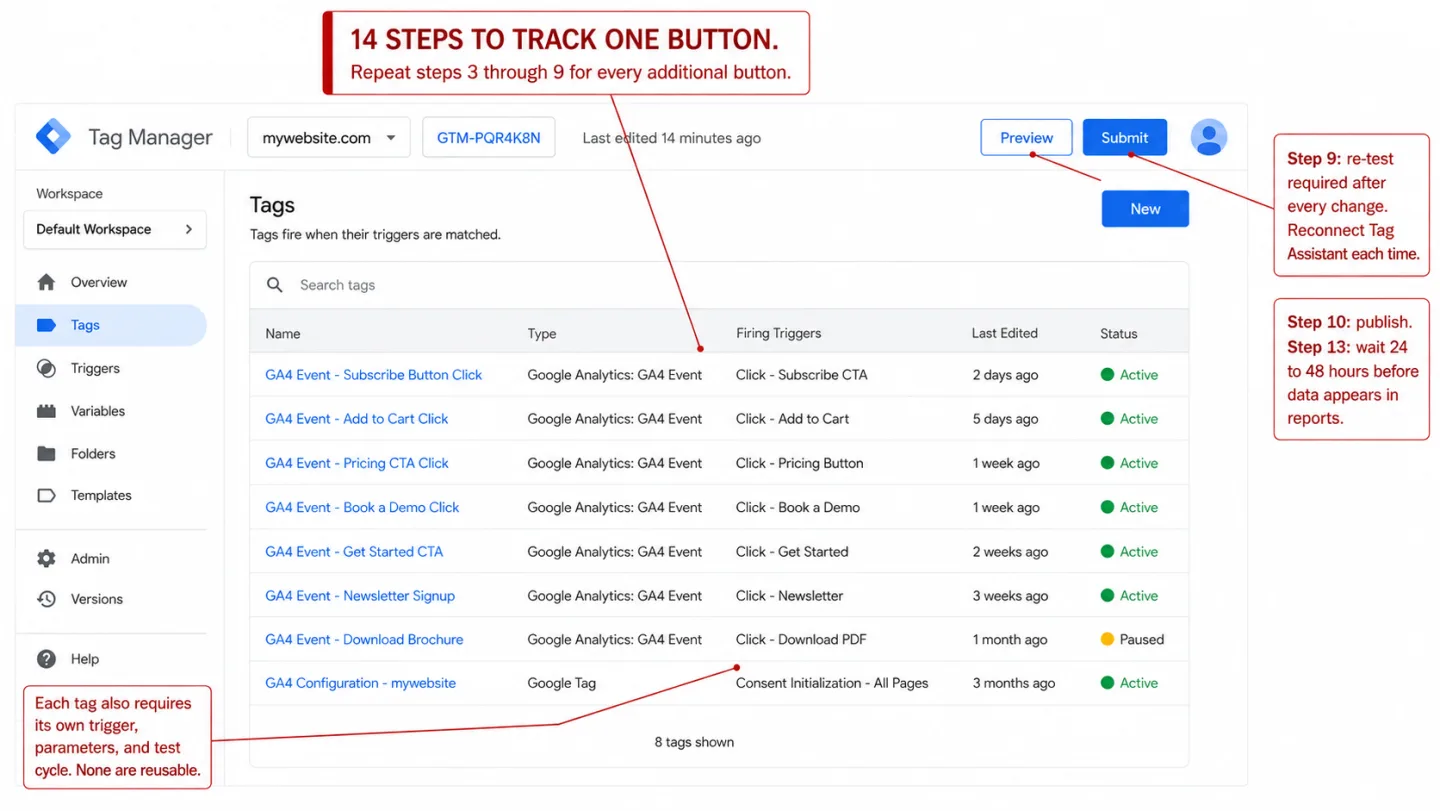
"Did someone click this button?" Yes or no. That's the simplest question in analytics, and you'd expect the biggest analytics tool in the world to answer it out of the box. GA4 doesn't. It turns one yes-or-no into a 14-step project spanning two Google products, CSS selectors, and a 48-hour wait. In plain English: something is broken.
Quick disclosure before the walkthrough: I run Clickport, a cookieless analytics tool that treats click tracking as a one-liner, so I'm biased. What I can promise is that the GA4 instructions below are complete. I'd rather you fix your setup than guess.
- GA4 does not track button clicks automatically. Enhanced Measurement only covers outbound links and file downloads. Internal CTAs like 'Book a Demo' and 'Add to Cart' are invisible without Google Tag Manager.
- The full GTM setup requires 14 steps across 3 platforms, including a mandatory 48-hour wait before click data appears in reports. Custom dimension registration is not retroactive.
- 34-47% of EU visitors reject analytics cookies (USENIX Security, 2024). Combined with the roughly 32% of internet users on ad blockers, GA4 can miss more than half of real button clicks.
- GTM adds 96ms to Interaction to Next Paint and loads 134 KB of JavaScript. The tool you use to measure clicks degrades the clicking experience.
- Clickport auto-tracks outbound links, downloads, and forms with zero setup. For internal CTA buttons, one line of JavaScript replaces the entire 14-step GTM workflow.
What GA4 actually tracks (and what it ignores)
Enhanced Measurement turns on by default on every GA4 property. It tracks seven types of interactions without a line of code: page views, scrolls, outbound link clicks, site search, video engagement, file downloads, and form interactions. That sounds like the whole job. It isn't. Look at the list again.
It tracks clicks on links that leave your domain. Nothing else counts as a click. Your "Book a Demo" button, your Add to Cart, your "Get Started" CTA, your pricing page toggle, your navigation menu items: GA4 has no idea any of them exist.
This is where I see most people get caught out. You install GA4, flip on Enhanced Measurement, and assume the buttons are covered. Weeks later you go looking for button click data and there's nothing there. I hear this story a lot. Root and Branch Group says it plainly: "There is no built-in solution for tracking any button clicks that go to another page on your domain or for button clicks that don't go to a link destination." That's the people who live in GA4 every day describing the gap.
So GA4 knows your visitors' screen resolution. It knows their browser version and their language. It doesn't know whether anyone clicked the most important element on the page. That's backwards.
The full GTM setup: 14 steps to track one button
Google's answer to button click tracking is Google Tag Manager. GTM is a whole separate product, with its own account, its own container, and its own learning curve. Not the "5 easy steps" version the tutorials sell you. I've written out every screen and every field you have to touch.
Step 1: Enable built-in click variables. In GTM, go to Variables > Configure. Scroll to the Clicks section. Enable Click Element, Click Classes, Click ID, Click URL, and Click Text. That's five checkboxes across a scrollable list.
Step 2: Create a discovery trigger. Go to Triggers > New. Select "All Elements" as the trigger type. Set it to fire on "All Clicks." This captures every click on your site so you can identify the button's attributes.
Step 3: Enter Preview mode. Click "Preview" in GTM. Tag Assistant opens in a new tab. Enter your website URL and click Connect. Your site opens in a third tab with a debug overlay.
Step 4: Click the button. Navigate to the page with your CTA. Click it. Then switch back to the Tag Assistant tab.
Step 5: Identify the button's attributes. In Tag Assistant, find the "Click" event in the left sidebar. Click the Variables tab. Note the Click Text, Click Classes, Click ID, or Click URL. These are the values you'll use to target this specific button. If the button is wrapped in nested HTML (an icon inside a span inside a link), the variables may show the child element's attributes instead of the parent button's. You will need CSS selectors to handle this.
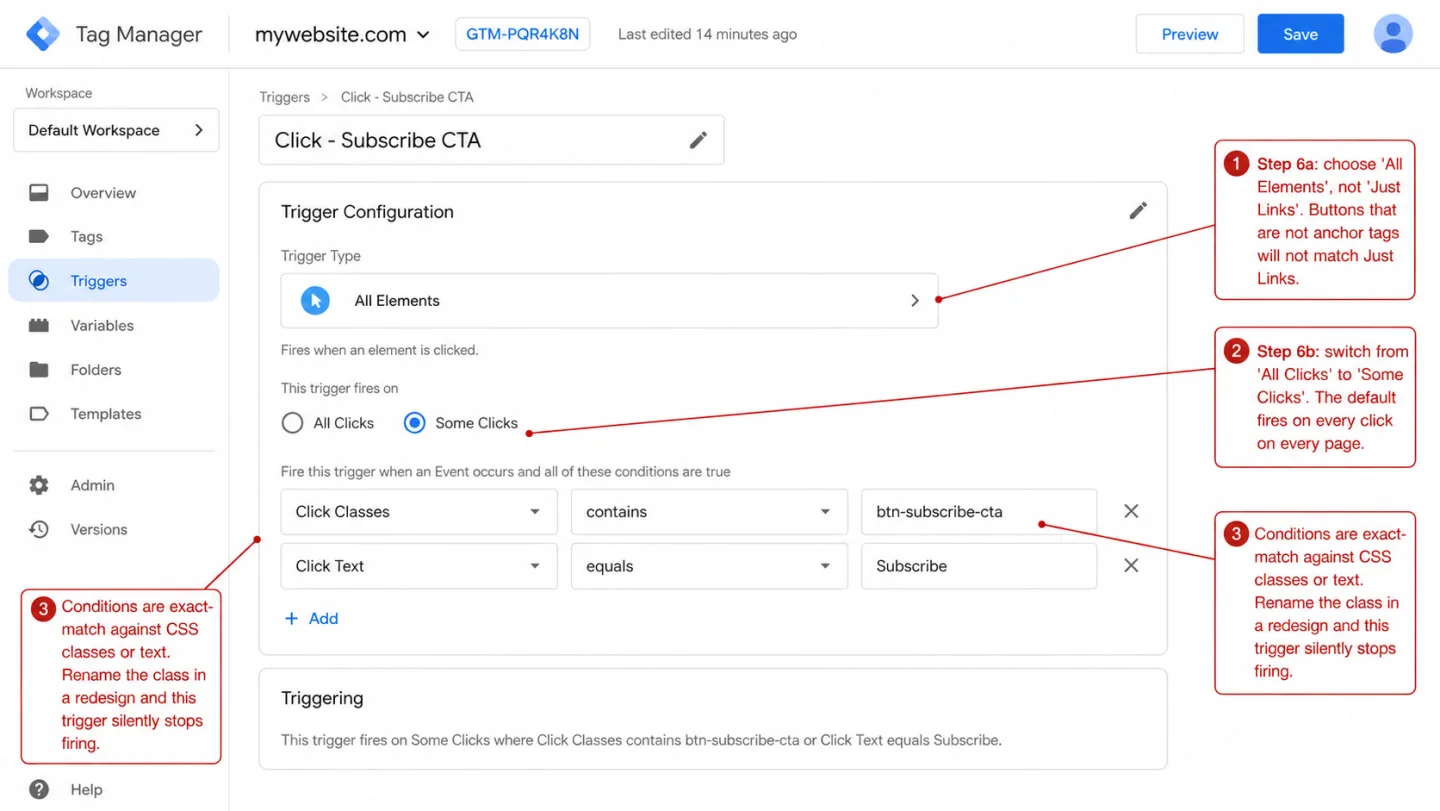
Step 6: Create a refined trigger. Go back to Triggers. Create a new trigger (or modify the existing one). Change "All Clicks" to "Some Clicks." Set the condition: Click Classes contains your-button-class, or Click Text equals Subscribe, or use "Matches CSS Selector" for complex structures.
Step 7: Create the GA4 Event tag. Go to Tags > New. Select "Google Analytics: GA4 Event." Enter your Measurement ID. Set the Event Name (e.g., subscribe_button_click). Under Event Parameters, add rows mapping parameter names to click variables: button_text = {{Click Text}}, button_url = {{Click URL}}.
Step 8: Assign the trigger. In the tag's Triggering section, select your refined click trigger.
Step 9: Test again. Re-enter Preview mode (you must reconnect after every change). Click the button. Verify the tag appears under "Tags Fired." Check that the event name and parameters are correct.
Step 10: Publish the container. Click Submit in GTM. Add a version name and description. Click Publish. Your tracking is now live.
Step 11: Verify in GA4 DebugView. Open GA4, go to Admin > DebugView. Trigger the click on your site. Confirm the event appears with the correct parameters. DebugView has 18 documented reasons it might not work.
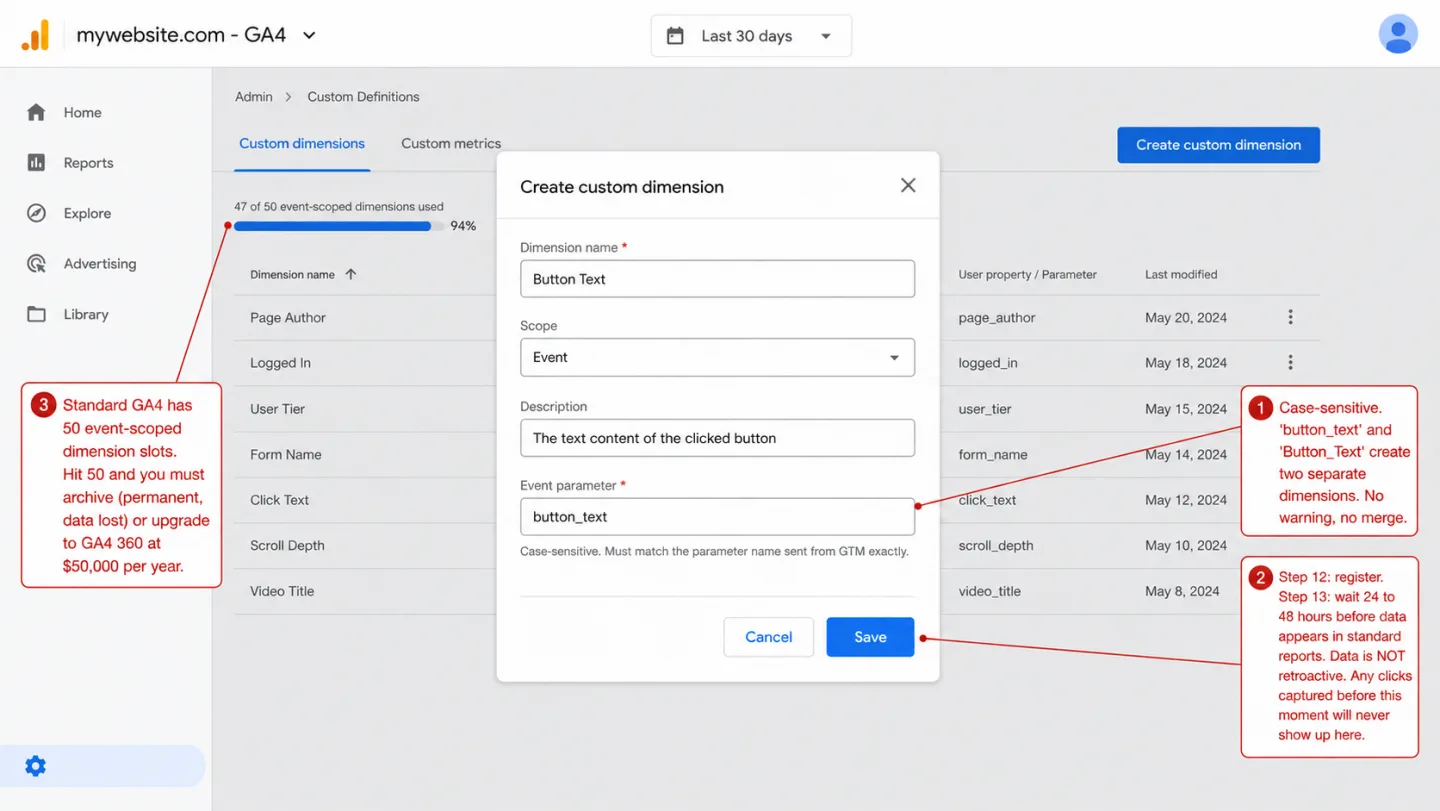
Step 12: Register custom dimensions. Go to GA4 Admin > Custom Definitions > Create Custom Dimension. Enter the parameter name exactly as sent from GTM (case-sensitive). Set scope to Event. Click Save.
Step 13: Wait 24-48 hours. Custom dimensions take up to 48 hours to populate in standard reports. There's nothing you can do to speed this up.
Step 14: Build an Exploration report. Go to Explore > Blank. Import your event name dimension and event count metric. Add a filter for your button click event. Drag dimensions and metrics into the rows and values sections. This is the only way to see which specific buttons were clicked.
That's one button. Every extra button means doing steps 3 through 9 again: a new trigger, a new tag, another testing cycle. In other words: the work scales with your button count. MeasureSchool doesn't hide it: "Many GTM beginners (or intermediate users) have become frustrated trying to figure out what appears to be a simple form of tracking."
The hidden step nobody warns you about
The tutorials I compared all stop at "publish the container." They leave out the one step that trips up more people than any other.
GA4 collects your event parameters, button_text and button_url, but it doesn't show them in reports by default. All you'll get is the event name and a count. "subscribe_button_click: 47 events." That means 47 clicks with no idea which button, which page, or what text the visitor saw.
To see the parameters, you have to register each one as a custom dimension in the GA4 admin panel. That's a separate job from the GTM setup you just finished. And it comes with three catches.
Catch 1: It isn't retroactive. Data starts flowing the moment you register the custom dimension, and not a second before. Run your tracking for a week before you register, and that week of click data is gone from standard reports for good. It won't backfill, ever.
Catch 2: It takes another 24-48 hours. Once you register, you'll wait up to two more days for the dimension to populate. Add that to the wait from Step 13 and in practice you're four days out from setup before you see anything useful.
Catch 3: You have 50 slots. A standard GA4 property gives you 50 event-scoped custom dimensions. Every click parameter, button_text, button_url, button_location, eats one slot. Throw in form parameters, scroll parameters, and custom event parameters, and a moderately instrumented site burns through 30-40 slots fast. Hit 50 and your choices are archiving a dimension (permanent, data lost) or upgrading to GA4 360 at a reported $50,000 per year. Translation: run out of slots and the fix costs $50,000.
Todd H. Gardner, CEO of Request Metrics, put the whole experience in one line: "You need a decoder ring and a master's degree to understand it."
Tracking button clicks without GTM
Maybe you'd rather not touch Google Tag Manager at all. GA4 gives you two ways to do it in code instead. I'll show you both. Neither one is simple. (Or skip GA4 altogether: every tool in our GA alternatives comparison tracks clicks without GTM.)
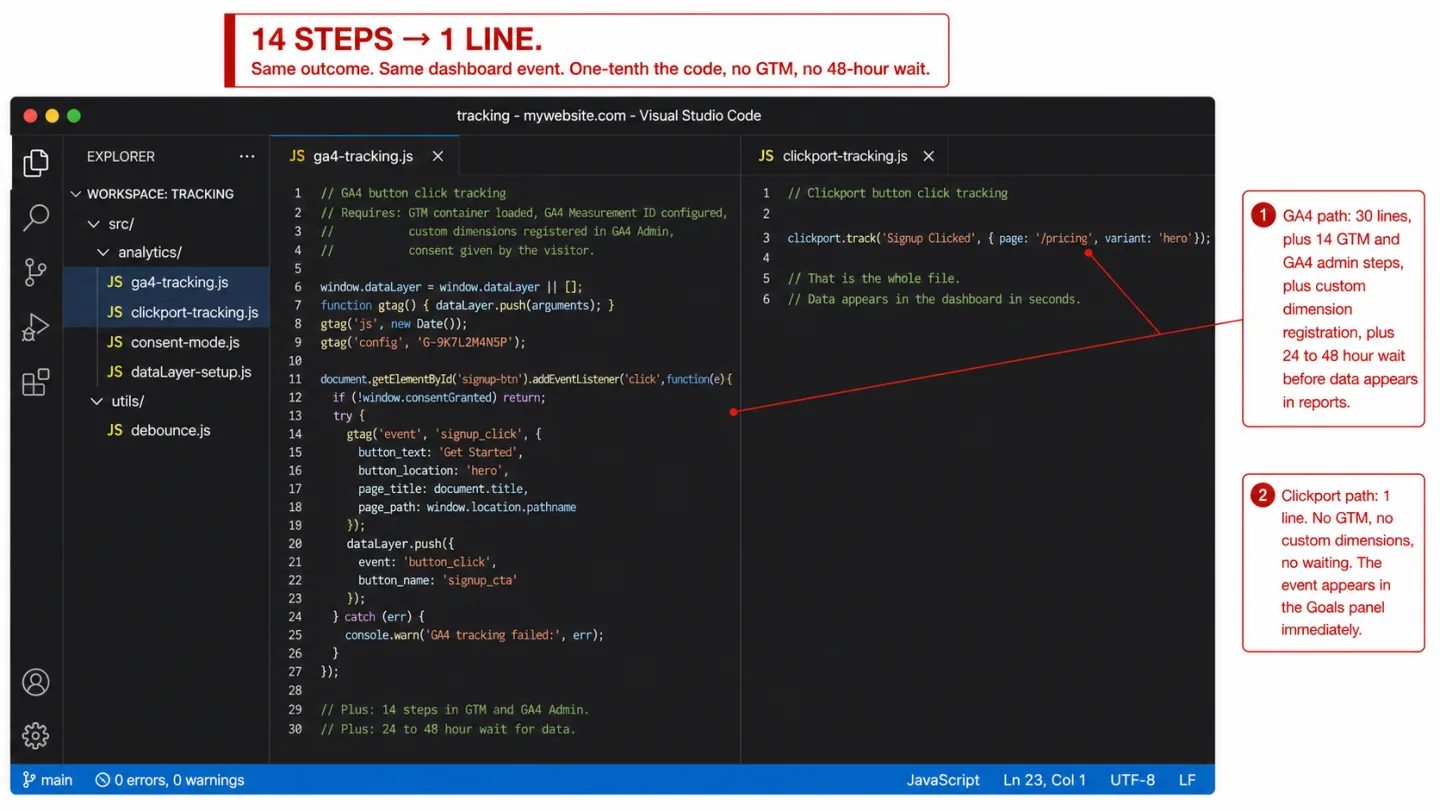
Method 1: gtag.js inline events. Drop a JavaScript call straight into your button's click handler:
document.getElementById('signup-btn').addEventListener('click', function() {
  gtag('event', 'signup_click', {
    button_text: 'Get Started',
    page_title: document.title
  });
});
It works, but it comes with real limits. If the visitor moves to a new page right after clicking, the browser can kill the network request before it finishes. GA4 leans on sendBeacon to soften this, but sendBeacon has known reliability issues across browsers: some requests just fail during page unload, and mobile is the worst for it. Your event vanishes, and no error tells you so.
Parameter values get silently truncated at 100 characters. Event names cap out at 40. Go over either limit and GA4 throws no error. It quietly cuts the data and moves on.
Method 2: dataLayer.push(). Push an event into the data layer, then set up a GTM tag to listen for it:
window.dataLayer = window.dataLayer || [];
window.dataLayer.push({
  event: 'button_click',
  button_name: 'signup_cta'
});
So you're back to needing GTM to read the event. And dataLayer brings its own documented pitfalls: the variable name has to be exactly dataLayer with a capital L, other scripts can overwrite the array, and old event data hangs around and bleeds into the next push.
Both methods come back to the same root problem. GA4 almost never throws an error. Wrong Measurement ID? Silent. Undefined parameter value? The event drops out of DebugView and you never hear about it. Past the 500 distinct event name limit? New events get dropped without a word. You can send GA4 pure garbage and it hands you a 200 OK.
SR Analytics audited a stack of GA4 setups and found that 81% of them contain errors that hurt data accuracy. Which means roughly four in five. And 73% of those audits turned up missing event tracking. When the tool never tells you something broke, this is what you get.
Why your click data is already incomplete
Say you nailed all 14 steps. I still have bad news. Your button tracking is live, your custom dimensions are registered, the data is flowing. You are still missing a big chunk of the clicks that really happened.
Ad blockers hide roughly a third of your visitors. About 32% of internet users run one, and uBlock Origin, Ghostery, and Brave's built-in shields all block requests to google-analytics.com and googletagmanager.com. These people click your buttons, and GA4 never knows they were on the site. With a developer-leaning audience it climbs to 72%. Which means close to three in four, gone before it counts.
Consent mode costs you another 34-47% of EU data. When an EU visitor rejects the cookie banner, GA4 either stops tracking them outright (Basic Consent Mode) or sends anonymous pings with no session context (Advanced Consent Mode). A 2024 USENIX Security study of 3,947 participants found 34% rejection with equal-prominence banners and up to 47% with transparency-focused designs. In Germany, the etracker 2025 study found consent rates of only 40-54%. Translation: roughly half of German visitors say no.
Stack those two together and your tracking can miss more than half of the actual button clicks.
I want you to sit with that for a second. You spent 14 steps setting up button tracking. You waited 48 hours for the data. In other words: a partial count that misses more visitors than it keeps. How much it misses depends on your audience. I built the GA4 Data Loss Estimator to run the ad-blocker and consent math for your region and industry in about a minute. A cookieless analytics tool built the right way sidesteps the whole thing, because it needs no consent banner. No cookies and no personal data processing means nothing to ask consent for. No consent banner means no data lost at the banner.
When SPAs and redesigns break everything
Set all of this up and you still own a maintenance problem that never comes up during setup.
Single Page Applications break GTM click triggers. React, Vue, and Angular re-render the DOM on a route change without ever reloading the page. GTM's click variables point at elements that may not be there any more. A CSS selector that matched on page load returns nothing after a navigation. Next.js's Link component fights GTM head-on: GTM's listener calls preventDefault(), Next.js reads e.defaultPrevented and skips its own client-side routing. You get a full page refresh instead of the smooth navigation the framework was supposed to give you.
Simo Ahava, the best-known GTM expert in the field, explains that GTM "attaches the listener on the top-most document node." So when any script in the event's path calls stopPropagation(), "GTM's listeners never capture the event, and thus they will never work with your tags."
A redesign quietly kills your tracking. A developer renames a CSS class. A button switches from an <a> tag to a <button> element. The markup around a CTA shifts. Your GTM trigger stops firing. No monitor, no alert, no email. You find out weeks or months later, when someone asks why conversions dropped off a cliff. TagCompanion names the bind: "You can't explain why it took 3 days without sounding incompetent."
Get Started
</a>
GTM trigger fires ✓
<span>Get Started</span>
</button>
GTM trigger fails silently ✗
None of this is a rare edge case. Remember that 81% of audited GA4 implementations contain errors. Because GA4 fails silently, you don't learn the tracking is broken until a human goes and checks by hand.
The performance cost of tracking clicks
GTM doesn't only add complexity. It adds weight to every single page your visitors load.
GA4's gtag.js script comes in at 134 KB compressed and 371 KB uncompressed. That means 6.7 times the size of the old Universal Analytics script. Add the Google Tag Manager container on top, around 33 KB compressed, and you're shipping 167+ KB of JavaScript before you have captured one number that matters to the business. In practice: 167 KB of overhead to count a click.
And I can put numbers on the cost. Subito, Italy's biggest classifieds site, clocked Interaction to Next Paint at 208ms with GTM and 112ms without it. In plain English: a 96ms penalty for keeping it. Their click tracking was slowing down the very clicks it was there to count. Analytics Mania's controlled tests found 8 GTM tags added roughly 3 seconds to page load on Fast 3G, and 10 seconds on Slow 3G.
| Tool | Transfer size | Parse size |
|---|---|---|
| GA4 gtag.js | 134 KB | 371 KB |
| GTM + GA4 combined | 167+ KB | ~500 KB |
| Clickport tracker | 1.9 KB | ~5 KB |
Every extra 100ms of load time costs roughly 1% in revenue. Which means the loop feeds itself. You add GTM to see which buttons people click. GTM slows the page. Fewer people click the buttons. Your analytics show lower numbers. You add more tracking to work out why. The page gets slower still. The tool you brought in to measure the problem is now causing it.
Brian Clifton, the former Head of Web Analytics at Google, sees where this goes: "As privacy expectations rise, analytics tools built on aggregated, non-identifiable data will gain momentum. They offer reliable measurement without consent-related data loss, while keeping personalization optional rather than mandatory."
The simpler approach
I built Clickport to go the other way. The tracker is one 1.9 KB script tag, and it auto-tracks outbound link clicks, file downloads, form submissions, and copy events with nothing to configure. No GTM. No custom dimensions. No 48-hour wait. The data shows up in your dashboard in seconds.
For internal CTA buttons, which is what most of the people typing "GA4 button click tracking" are really after, there's a one-line JavaScript API:
clickport.track('Signup Clicked', { page: '/pricing', variant: 'hero' })
That's the whole thing. The event lands in your Goals panel right away. No tag management system. No CSS selectors. No trigger setup. No custom dimension registration. No 48-hour wait. Want that click to count as a conversion? Define a goal in the dashboard and you're done.
I'll line them up side by side:
- GA4 + GTM: 14 steps, 3 platforms, CSS selectors, Preview/Debug cycles, custom dimension registration, 48-hour wait, 167+ KB of JavaScript, consent banner required
- Clickport: 1 line of code, instant data, 1.9 KB script, no cookies, no consent banner needed
Stuck somewhere in the 14 steps? Email me what you're seeing.
Start your free 30-day trial. No credit card. One script tag. Data in 30 seconds.
Frequently asked questions
Does GA4 automatically track button clicks?
No. Enhanced Measurement only tracks outbound link clicks (links leaving your domain) and file downloads. Internal buttons like "Book a Demo," "Add to Cart," and "Get Started" aren't tracked on their own. To capture those you need Google Tag Manager or custom JavaScript.
Can you track button clicks in GA4 without Google Tag Manager?
Yes, with the gtag.js API. Add gtag('event', 'button_click', { button_text: 'Your Button' }) to the button's click handler. You still need JavaScript on your site, custom dimension registration in GA4, and a 24-48 hour wait for data. In practice, the gtag.js route also brings navigation race conditions and silent failures.
Why is my GA4 click event not showing in reports?
When people email me this one, it's usually one of four things. (1) The custom dimensions aren't registered in Admin > Custom Definitions, so the parameters get collected but stay invisible in reports. (2) The 24-48 hour processing delay. Standard reports aren't real time. (3) Data thresholding. GA4 hides rows with very few users so people can't be identified. (4) Ad blockers or consent mode killing the request before it ever leaves the browser.
What is the difference between "All Elements" and "Just Links" triggers in GTM?
"Just Links" only fires on <a> tag clicks and walks up the DOM tree to find the nearest link for you. "All Elements" fires on anything clickable (buttons, divs, spans, images) but captures the exact element clicked, which may be a child inside your button. If your button is a <button> or a <div>, "All Elements" is the only one that works.
How long does it take for click events to appear in GA4?
You'll see custom events in DebugView within minutes, as long as debug mode is on. Standard reports take 24-48 hours. A custom dimension you register after the events were already sent only shows data from the moment you registered it, never backwards. The quickest check is the GA4 Realtime report, which shows the last 30 minutes of all traffic.
Can GA4 track clicks on internal links and CTA buttons?
Not on its own. Enhanced Measurement only covers outbound clicks. For internal links, CTA buttons, "Add to Cart" buttons, phone links, and email links, you need either Google Tag Manager (the 14-step setup) or custom JavaScript (gtag('event', ...) or dataLayer.push()). There's no toggle anywhere in GA4 that turns on internal click tracking.
Do I need to register custom dimensions to see click parameters?
Yes. GA4 collects the parameters but won't show them in standard reports or Explorations until you register each one by hand as a custom dimension in Admin > Custom Definitions. The registration isn't retroactive. Standard GA4 gives you 50 event-scoped custom dimensions. GA4 360 gives you 125, starting at $50,000 per year.

Comments
Loading comments...
Leave a comment