GA4 Scroll Depth Tracking: The 90% Problem (And How to Fix It)
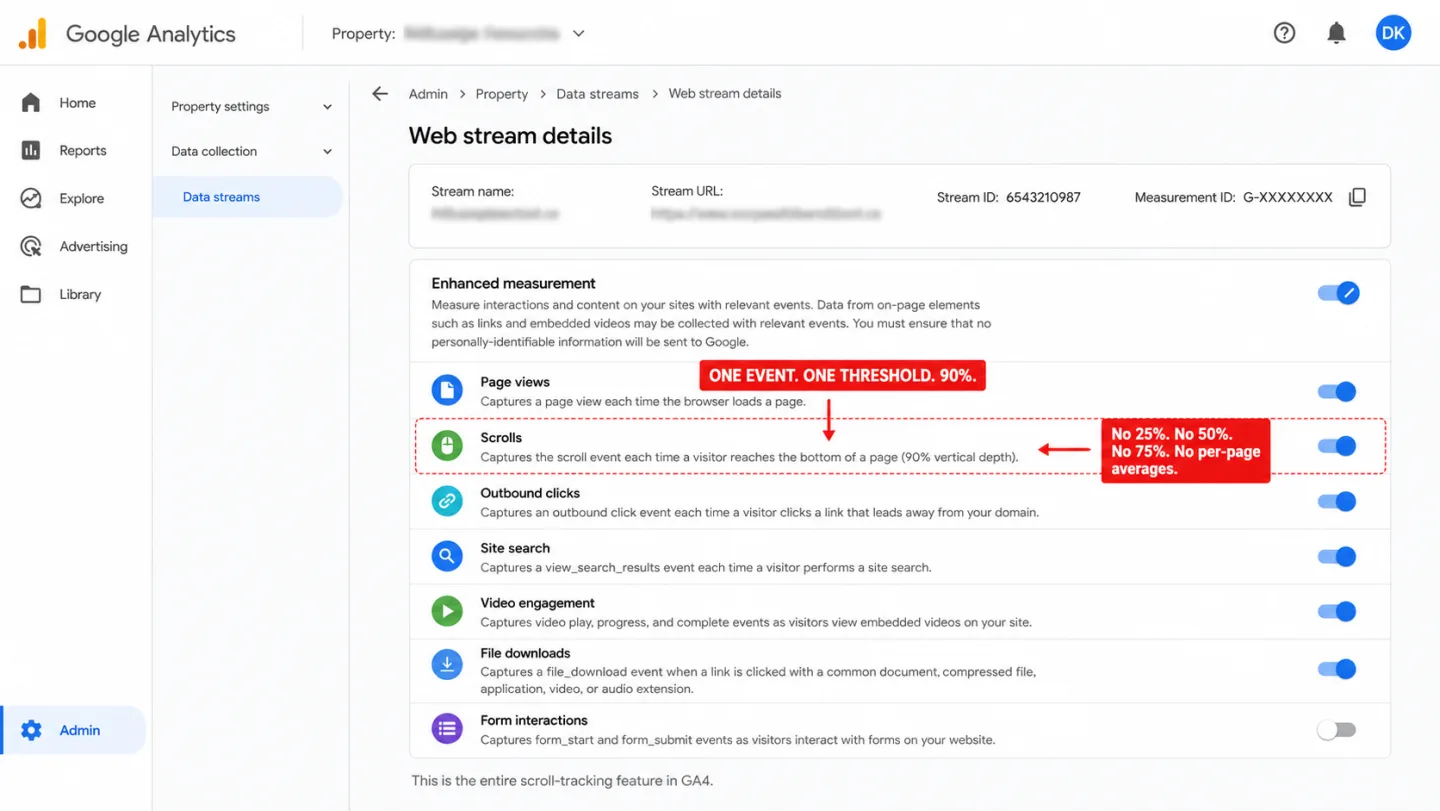
Ninety percent. That's the only point on the page where GA4 records whether anyone scrolled. I mean that literally. One event, at one threshold, once per page. Everything between the headline and the footer is invisible to it. So the tool that knows your visitors' screen resolution and browser language has no idea whether a single one of them read past your first paragraph.
Quick disclosure up front: I run Clickport, a cookieless analytics tool that tracks scroll depth on its own, so I'm the interested party here. The GA4 walkthrough below is still the complete version. I'd rather you get working data either way.
- GA4's Enhanced Measurement fires a single scroll event when a visitor reaches 90% of the page. No 25%, 50%, or 75% breakpoints. No per-page averages. No drop-off data.
- Setting up multi-threshold scroll tracking via GTM requires 10+ steps across three platforms, a mandatory 48-hour wait for data, and breaks silently on SPAs, lazy-loaded content, and pages shorter than the viewport.
- 55% of all pageviews get fewer than 15 seconds of active attention (Chartbeat, 2 billion visits). Average scroll depth is roughly 50%. GA4's 90% threshold captures only the minority who reach the bottom.
- On a typical EU publisher site, 55-75% of scroll events are never collected due to cookie consent rejection (34-47%, USENIX 2024) and ad blockers (15-40%). GA4's behavioral modeling cannot reconstruct scroll data.
- Privacy-first analytics tools track scroll depth automatically at every percentage, with zero setup, no consent banners, and no data loss from ad blockers or consent rejection.
What GA4 actually tracks when someone scrolls
GA4's Enhanced Measurement includes an automatic "scroll" event. It fires once, when a visitor reaches 90% of the vertical page depth. In plain English: that's the entire feature. One event, one threshold, one time per pageview.
The event carries a single parameter: percent_scrolled, and the value is always 90. You can't move the threshold. You can't add checkpoints in between. GA4 won't give you an average scroll depth, a distribution curve, or a per-page breakdown in any standard report. So the one signal you do get answers a question almost nobody asks: did this person reach the very bottom?
On short pages it doesn't even answer that. A thank-you page, a contact form, a confirmation screen: nearly every visitor hits 90% without scrolling at all, because all thresholds fire simultaneously on page load when the page is shorter than the viewport. Which means "scrolled" can mean nobody scrolled. That isn't engagement data. It's noise wearing a number.
Binary: yes or no.
No intermediate thresholds.
No per-page scroll averages.
No drop-off distribution.
Fires on short pages without scrolling.
Per-page averages to compare content.
Where readers drop off.
Scroll data combined with time on page.
Data for every visitor, not just 90% scrollers.
Real-time, no 48-hour delay.
I am not the only one who finds this useless. Julius Fedorovicius, one of the most cited GA4 experts there's, put it plainly on Analytics Mania: "it's very difficult to remember a case where I found scroll tracking in GA useful."
Why the 90% threshold misses most of your readers
The 90% mark catches the tail end of what readers do. Most of them never get there. I'll show you the numbers.
Nielsen Norman Group's 2018 eyetracking study measured 130,000 eye fixations across 120 people. It found that 57% of viewing time happens above the fold. 74% of all viewing time falls inside the first two screenfuls of content. Put another way: most of what your reader looks at, they look at near the top. People do scroll more than they did in 2010, when 80% of attention stayed above the fold. Translation: they still spend most of it up high.
Chartbeat looked at 2 billion page visits across the web. It found that 55% of all pageviews got fewer than 15 seconds of active attention. That means more than half of your visitors glance and go. The average reader scrolls about halfway through an article before leaving. Tony Haile, then CEO of Chartbeat, wrote in TIME: "We confuse what people have clicked on for what they've read."
Contentsquare's 2026 benchmarks across 99 billion sessions say the same thing. Desktop scroll rates average 50.5%, mobile just 45.2%, and both fall year after year. In plain English: people read about half the page, and a bit less of it every year.
On a 3,000-word blog post, 90% of the page is the footer and the comments. In other words: putting your only data point down there is like setting up a store counter at the fire exit and wondering why nobody stops by.
So the scroll event sees only the finishers. It tells you nothing about the many who left at 30%, 50%, or 70%. And it can't answer the one question content creators care about: where did readers lose interest?
The GTM workaround: 10 steps across three platforms
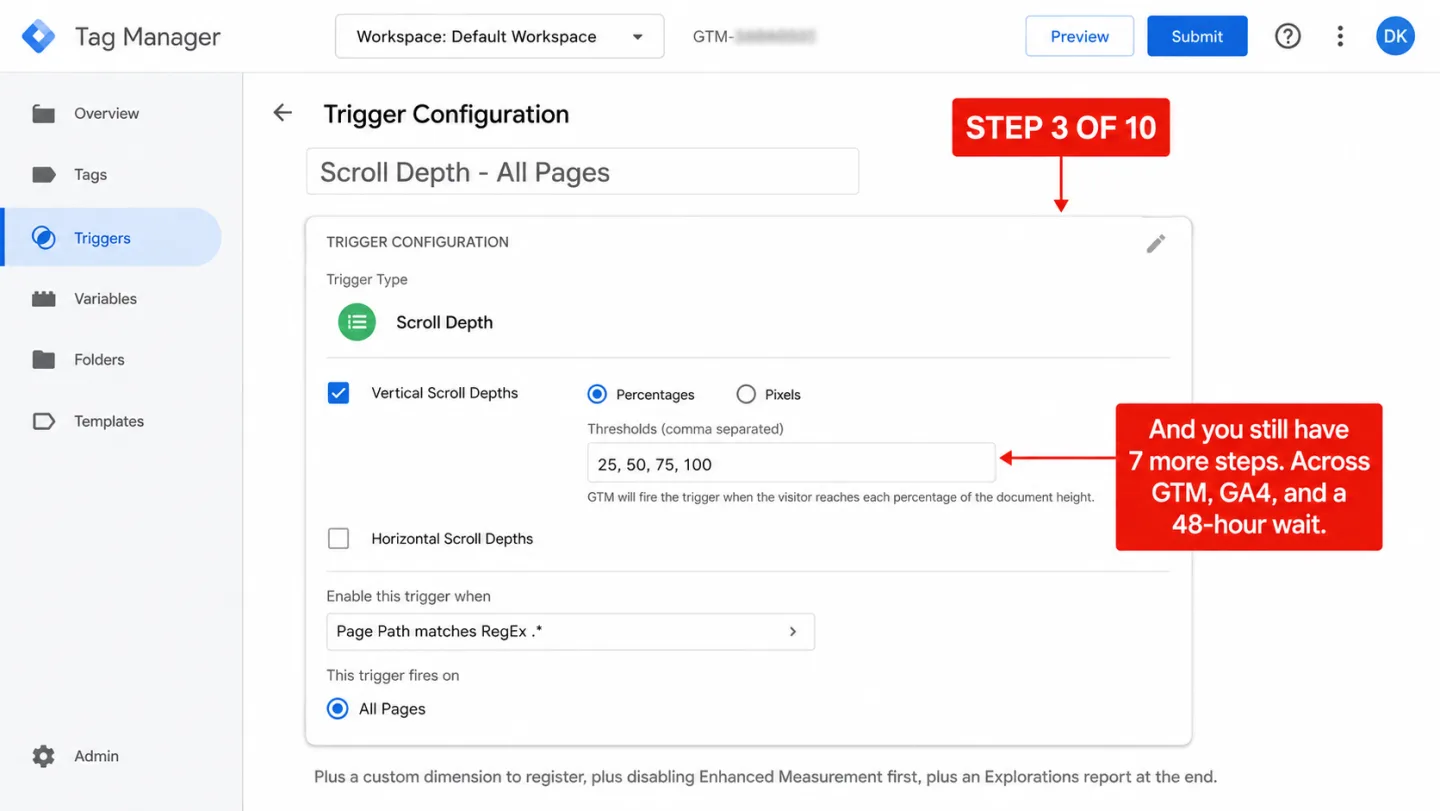
Google's answer to the 90% problem is Google Tag Manager. GTM is a separate product, with its own account, its own container, and its own learning curve. Here's what it takes to track scroll at more than one threshold.
Step 1: Disable Enhanced Measurement scroll. In GA4, go to Admin > Data Streams > your stream > Enhanced Measurement > toggle off "Scrolls." If you skip this, you get duplicate events at 90% that silently pollute your data.
Step 2: Enable scroll variables in GTM. Go to Variables > Configure. Enable Scroll Depth Threshold, Scroll Depth Units, and Scroll Direction under the built-in Scrolling section.
Step 3: Create a scroll depth trigger. Go to Triggers > New. Select "Scroll Depth." Check "Vertical Scroll Depths," select "Percentages," and enter your thresholds: 25, 50, 75, 100. Set it to fire on All Pages.
Step 4: Create the GA4 event tag. Go to Tags > New. Select "Google Analytics: GA4 Event." Enter your Measurement ID. Set the event name to scroll. Add an event parameter: percent_scrolled with value {{Scroll Depth Threshold}}.
Step 5: Assign the trigger. Link the scroll depth trigger to the tag.
Step 6: Test in Preview mode. Click Preview in GTM. Enter your URL. Scroll past each threshold. Switch to Tag Assistant and verify the events fired with correct values.
Step 7: Publish the container. Click Submit. Add a version name. Publish.
Step 8: Register the custom dimension in GA4. Go to Admin > Custom Definitions > Create Custom Dimension. Set scope to Event. Enter the parameter name percent_scrolled exactly (case-sensitive). If you get this wrong, your data appears in DebugView but never shows up in reports.
Step 9: Wait 24-48 hours. Custom dimensions take up to 48 hours to populate in standard reports. There's nothing you can do to speed this up.
Step 10: Build an Exploration report. Go to Explore > Blank. Import your scroll event, the percent_scrolled dimension, and event count metric. This is the only way to see which thresholds were reached and on which pages.
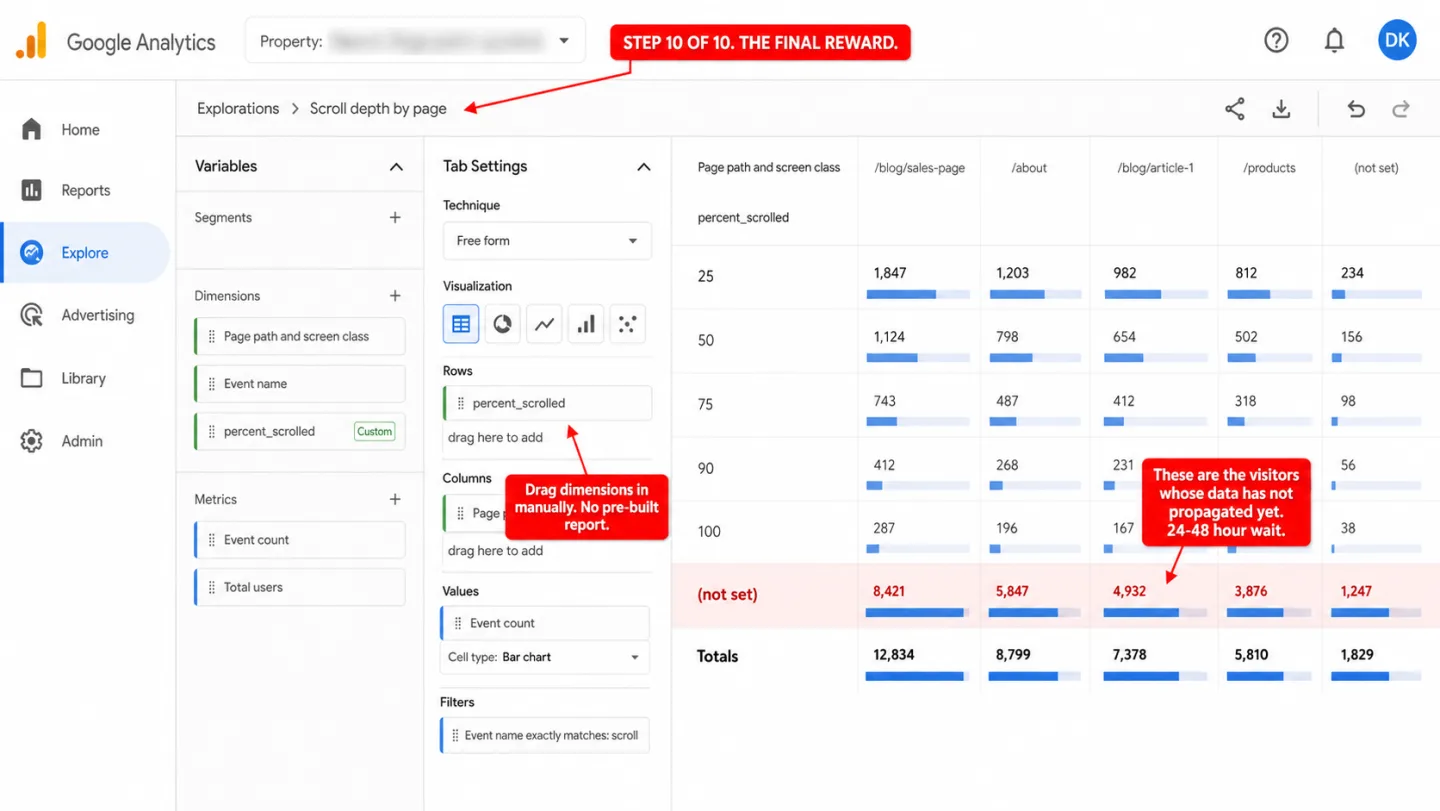
And that's just four thresholds on all pages. Every extra page-specific trigger or threshold means more setup. GA4 also caps you at 50 event-scoped custom dimensions in total. If you already track button clicks, outbound links, and form submissions, those slots run out fast.
The setup is fiddly enough that plenty of teams hand it to a freelancer or an agency. So to see how far people scroll, you hire someone. Most of the privacy-first GA alternatives we compared track scroll depth out of the box, no GTM at all.
Five ways GTM scroll tracking silently breaks
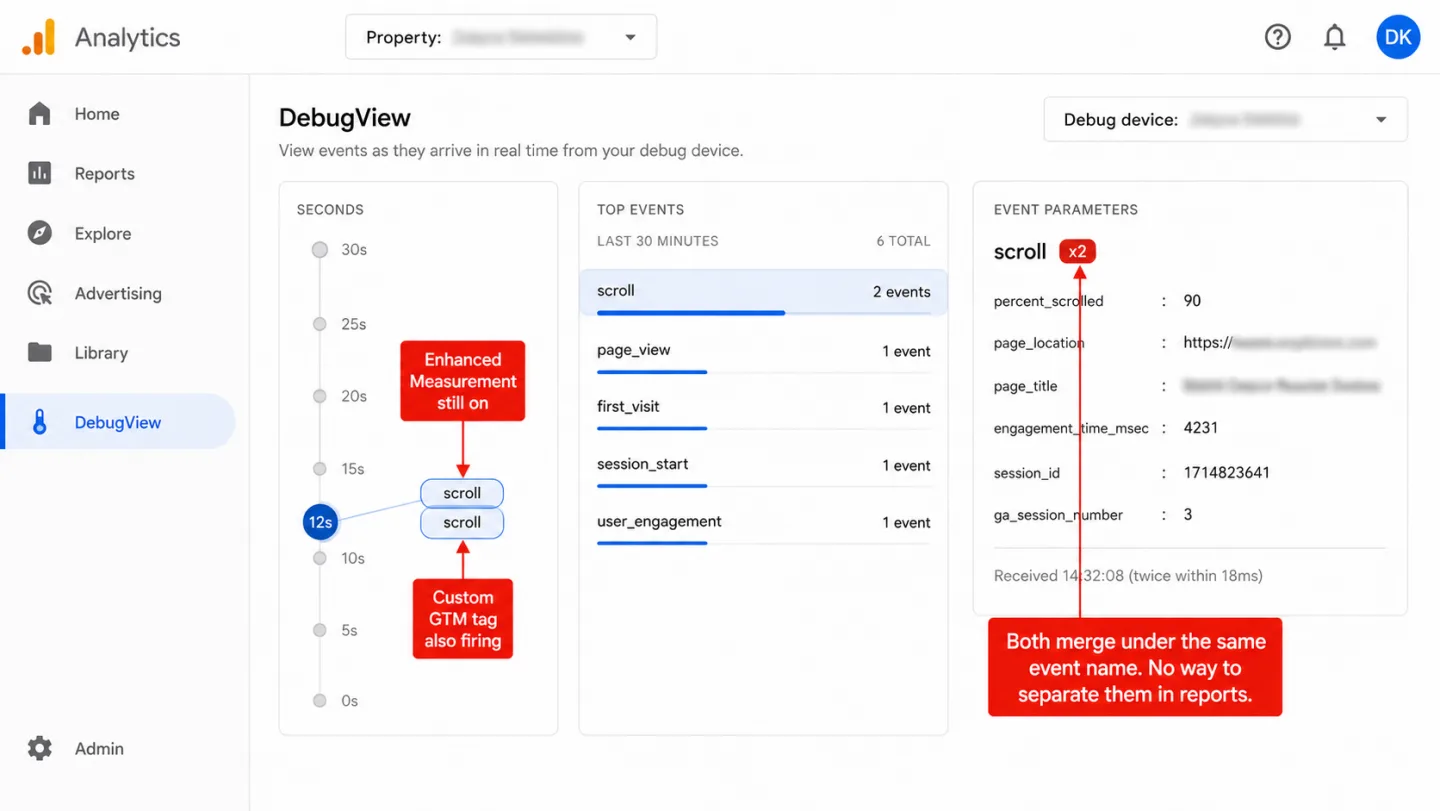
Say you finish all 10 steps and get every one of them right. I count five common situations that still break your scroll tracking. None of them throws an error.
1. Single Page Applications reset nothing. In React, Vue, Angular, and Next.js apps, moving between pages happens without a full page reload. GTM's scroll depth trigger keeps its state from the page before. A user scrolls to 100% on Page A, clicks through to Page B, and the trigger thinks every threshold is already crossed. Which means it fires nothing on Page B. Or on any page after it for the rest of the session. A Gatsby GitHub issue caught it cold: scroll events fired on the first page, then stopped dead on every client-side route change. A react-gtm issue asking how to reset scroll depth on navigation has sat open since 2023 with zero replies.
Simo Ahava, the most recognized GTM expert there is, lists the ability to "reset the trigger manually, which is useful especially on single-page apps" as a desired but missing feature in GTM. The man who knows GTM best says no.
2. Lazy loading changes the page height after the math is done. GTM works out scroll percentages from the page height at load. Then images, iframes, and content load below the fold, and the page gets taller. A user GTM scored as "75%" may have seen only half the final page. Google's own autotrack library documentation says it "works best on pages whose height doesn't change once the page has loaded" and is "not recommended" for infinite scroll. Google's own tooling warns you off the modern web.
3. CSS overflow containers are invisible to GTM. Plenty of layouts put overflow-y: auto on a container div and overflow: hidden on the body. Dashboard apps, chat interfaces, and full-screen SPA layouts all do it. GTM's trigger only watches window-level scroll events. Scrolling inside that container div never registers. The page looks like nobody scrolled it, ever.
4. Short pages fire all thresholds at once. Simo Ahava documented that when a page is no taller than the viewport, every scroll threshold fires the moment it loads, with no scrolling at all. Contact pages, thank-you pages, short landing pages: they all log 25%, 50%, 75%, and 100% on page load. Which means your data shows perfect engagement on pages where nobody moved a pixel.
5. Duplicate events because you forgot to disable Enhanced Measurement. This is the mistake people make most. Leave the GA4 Enhanced Measurement "Scrolls" toggle on while your custom GTM tracking runs, and every 90% scroll fires twice under the same scroll event name. The two streams merge in your reports. And there's no way to pull them apart later.
81% of GA4 setups carry errors that hurt data accuracy. Which means four out of five. Scroll tracking is one of the easiest to break, because it leans on a steady page structure, one scrolling context, and the same parameter name typed right across two separate Google products.
Tracking scroll depth without GTM
Maybe you'd rather skip Google Tag Manager. I'll give you the code for that too. You can track your own scroll thresholds with gtag.js directly instead. It does mean writing JavaScript on your site.
(function() {
  var thresholds = [25, 50, 75, 100];
  var fired = {};
  var ticking = false;

  function getScrollPercent() {
    var docEl = document.documentElement;
    var body = document.body;
    var scrollTop = docEl.scrollTop || body.scrollTop;
    var scrollHeight = Math.max(
      docEl.scrollHeight, body.scrollHeight,
      docEl.offsetHeight, body.offsetHeight
    );
    var clientHeight = docEl.clientHeight;
    if (scrollHeight <= clientHeight) return 100;
    return (scrollTop / (scrollHeight - clientHeight)) * 100;
  }

  function check() {
    var pct = getScrollPercent();
    for (var i = 0; i < thresholds.length; i++) {
      var t = thresholds[i];
      if (pct >= t && !fired[t]) {
        fired[t] = true;
        gtag('event', 'scroll', {
          percent_scrolled: t,
          page_path: window.location.pathname
        });
      }
    }
    ticking = false;
  }

  window.addEventListener('scroll', function() {
    if (!ticking) { ticking = true; requestAnimationFrame(check); }
  }, { passive: true });
})();
This fires GA4 events at 25%, 50%, 75%, and 100%, with passive scroll listeners and requestAnimationFrame throttling so it stays fast. In plain English: GTM's job, in 30 lines you own. The { passive: true } flag tells the browser not to wait for the handler before it scrolls, so the page doesn't stutter.
The code does the job. It won't spare you the baggage GTM carries:
- You'll still have to register
percent_scrolledas a custom dimension in GA4 - You'll still wait 24-48 hours before the data shows up in reports
- SPAs need extra router code to reset the
firedthresholds on navigation - Lazy-loaded content changes the page height after the first calculation
- Parameter values get silently cut off at 100 characters
- The script only works once GA4's gtag.js library has loaded
You could also reach for an IntersectionObserver approach: drop invisible marker elements at each threshold and watch them enter the viewport. It runs off the main thread and dodges the scroll listener performance cost, but you have to reach into the DOM to insert those markers.
Either way, you still have the bigger problem. Neither method does a thing about consent banners and ad blockers, which is where the next section goes.
What you lose to consent banners and ad blockers
Say you nailed the GTM setup, or dropped in the gtag.js code above, and scroll tracking is live. You are still missing more than half of the scroll data your visitors are handing you.
Cookie consent rejection loses 34-47% of EU visitors. When an EU visitor turns down the cookie banner, GA4 either stops tracking them entirely (Basic Consent Mode) or sends anonymous pings with no session context (Advanced Consent Mode). A 2024 USENIX Security study of 3,947 people found rejection rates of 34% with equal-prominence banners and up to 47% with transparency-focused ones. The etracker 2025 study found that legally compliant German banners average 40-54% consent, which means 46-60% of visitors say no. On a compliant site, the refusers can outnumber the accepters.
Ad blockers hide another 15-40% of visitors. Extensions like uBlock Origin, Ghostery, and Brave's built-in shields block requests to google-analytics.com and googletagmanager.com. Those people scroll your pages just fine. GA4 simply never loads for them. About 32% of internet users run one, and among developers it reaches 72%. So on the right site, GA misses most of the room.
GA4's modeling can't rebuild the scroll data. GA4 does model some metrics for unconsented users: active users, sessions, conversions. Event counts, scroll events included, aren't modeled in standard reports. So the hole in your scroll data stays a hole. No algorithm fills it in, and I checked.
How deep the hole runs depends on where your readers sit. The GA4 Data Loss Estimator sizes the consent and ad-blocker loss for your audience.
Cookieless analytics sidesteps all of this. A tool that stores nothing on the visitor's device and does no fingerprinting sits outside ePrivacy Article 5(3), so it needs no consent banner. No banner, no rejection, no lost data. And since a cookieless tracker never calls google-analytics.com or googletagmanager.com, the filter lists that block GA4 have nothing to block. You'll count the people GA4 throws away.
Why scroll depth matters more than you think
I keep hearing scroll depth called a vanity metric. It isn't. It shapes content quality, ad revenue, where you put your CTAs, and, in a roundabout way, your search rankings.
It tells you how to fix your content. Neue Zurcher Zeitung, Switzerland's oldest newspaper, used Chartbeat's scroll depth feature to find where readers gave up. They tried subheadings against plain text against bullet points. Subheadings won. Average engaged time went up nearly 20%, from 51 seconds to over 60 seconds, just by knowing where people stalled. In other words: they fixed the pages by watching where readers quit. Their head of audience engagement said the feature "helps us understand when exactly our readers are dropping off, find patterns, and get creative with layouts, copy, images, and more."
It predicts who subscribes. The Financial Times built an internal tool called "Lantern" that tracks scroll rate, retention rate, and average time on page per article. They found that "quality reads", sessions where a reader gets through at least half the article by scroll and time, predict subscription conversions better than raw pageviews do. The metric on every dashboard was the weaker one.
It moves ad money. A display ad counts as viewable when 50% of its pixels show for at least one second, the IAB standard. One publisher pushed viewability from 35% to about 60% with lazy loading and saw an 80% eCPM jump on those units. In practice, scroll depth shows you where people stop, so you can place ads before they leave instead of after. Chartbeat found that 66% of engaged time happens below the fold. Which means most sites still stack their ads exactly where the engagement isn't.
It feeds your rankings, sideways. Google's Navboost system, called "one of the important signals" by Google VP Pandu Nayak at the DOJ antitrust trial, weighs click quality (good clicks, bad clicks, last longest clicks) to judge whether content satisfied the searcher. A 2024 leak of internal Google docs confirmed the reach. Scroll depth isn't a ranking signal on its own. But what it reflects, people staying and reading or bouncing in a second, is exactly what Navboost is reading. As Andy Crestodina put it on the CoSchedule podcast, the metrics you stare at most are often the ones least tied to the business.
Without scroll data, you're guessing. With it, you'll know which pages hold people, where they lose interest, and where your CTAs and ads belong. Bounce rate on its own will never tell you that.
How automatic scroll tracking works
I built Clickport to do it the other way around. The tracker records the furthest a visitor scrolled, from 0 to 100%, on every page, on its own, with nothing to set up. No GTM. No custom dimensions. No thresholds to pick. No 48-hour wait.
It watches scrollTop against the document height and uses a ResizeObserver so dynamic content doesn't throw the math off. When the visitor leaves, it sends the deepest scroll they reached and the time they spent engaged. The data lands in your dashboard in seconds.
The dashboard shows scroll depth as a KPI averaged across every session. You'll get per-page scroll averages in the content panel, scroll trends in the hourly chart, and scroll folded into the engagement score that rolls scroll and time into one quality number.
Scroll depth also feeds the bounce calculation. A single-page session with under 25% scroll, no clicks, and under 15 seconds of active time is a bounce. Scroll past 25% and you aren't a bounce, even if you only saw one page. That means the bounce line is engagement, not a timer. That reads engagement far better than GA4's flat 10-second engagement time threshold, a number Google picked for you.
| Feature | GA4 (default) | GA4 + GTM | Clickport |
|---|---|---|---|
| Thresholds tracked | 90% only | You define (25/50/75/100) | 0-100% continuous |
| Setup required | None | 10+ steps, 3 platforms | None |
| Per-page averages | No | Via Explorations only | Built-in |
| Data delay | 24-48 hours | 24-48 hours | Seconds |
| Works on SPAs | Partial | Breaks silently | Yes |
| Consent banner needed | Yes (cookies) | Yes (cookies) | No |
Because the tracker uses no cookies and processes no personal data, it never trips ePrivacy consent rules. No banner, so no data lost when people decline. And it weighs 1.9 KB gzipped against GA4's 134 KB gtag.js. Which means roughly seventy times lighter, and the visitor never notices it's there.
And if your scroll numbers still look wrong after all this, email me a screenshot.
Start your free 30-day trial. No credit card. One script tag. Scroll data on every page in 30 seconds.
Frequently asked questions
Does GA4 track scroll depth automatically?
Sort of. GA4's Enhanced Measurement fires one "scroll" event when a visitor reaches 90% of the page. It doesn't track 25%, 50%, or 75%. It doesn't show per-page averages. It doesn't show how far people got across the page. For anything more than 90%, you need Google Tag Manager or custom JavaScript.
Why does GA4 only track 90% scroll depth?
Google has never said, as far as I can find. The 90% mark probably stands in for "reached the bottom," since footers, comments, and related links usually fill the last 10% of a page. The trouble is that research from Chartbeat and Nielsen Norman Group shows most readers stop around halfway. So 90% only ever catches the few who nearly finish.
How do I track 25%, 50%, 75% scroll depth in GA4?
You have two ways. One: Google Tag Manager, with a Scroll Depth trigger set to your vertical percentages and wired to a GA4 Event tag. Two: custom JavaScript on gtag.js, with scroll listeners that fire gtag('event', 'scroll', { percent_scrolled: threshold }) at each checkpoint. Both ways make you turn off the default Enhanced Measurement scroll event and register a custom dimension. And you'll wait 24-48 hours either way.
What is a good scroll depth percentage?
It depends on the page, and I'd treat these ranges as guides. Blog posts and long reads: 55-70% average scroll depth is healthy. Landing pages: 30-50% is normal, since the CTA sits up high. Product pages: 40-60%. Educational content: 70-90%. Below 30% on a content page is a sign the writing or the design needs work. Above 75% means people are reading. For a sense of the baseline, the Contentsquare 2026 benchmark across 99 billion sessions puts desktop scroll rates at 50.5% and mobile at 45.2%.
Does scroll depth affect SEO?
Not on its own. Google doesn't pull your GA4 scroll data into rankings. But the behavior behind scroll depth, whether people stay and read or bounce in a second, does move rankings. Google's Navboost system, confirmed at the DOJ antitrust trial, uses click quality to rank results. Pages people sink into tend to beat pages they bounce off back to search.
Why is my GA4 scroll tracking not working?
When someone emails me this, it's usually one of five things. One: the Enhanced Measurement "Scrolls" toggle is off and you never set up custom tracking. Two: you never registered the custom dimensions in GA4 Admin, so the parameters come in but stay invisible in reports. Three: ad blockers or consent mode are blocking the gtag.js script outright. Four: on SPAs, the scroll trigger doesn't reset between client-side route changes. Five: overflow: hidden on the body, with the scrolling happening inside a container div, hides window-level scroll events from GTM.
Can you track scroll depth without Google Tag Manager?
Yes. You can write custom JavaScript that listens for scroll events and calls gtag('event', 'scroll', { percent_scrolled: value }) at each threshold. It needs the GA4 gtag.js library loaded on the page. You'll still register custom dimensions, and you'll still wait 24-48 hours for the data. Or skip the whole thing: I built Clickport to track scroll depth on its own, with no code and nothing to configure.

Comments
Loading comments...
Leave a comment