How to Segment Website Traffic With Filters and Saved Segments
Your website dashboard says visitors went up 14% this month. That's good news. But where did the extra visitors come from? Are they potential customers, or people who found one of your blog posts through a forum?
The total visitor count doesn't tell you. It combines everyone into one number.
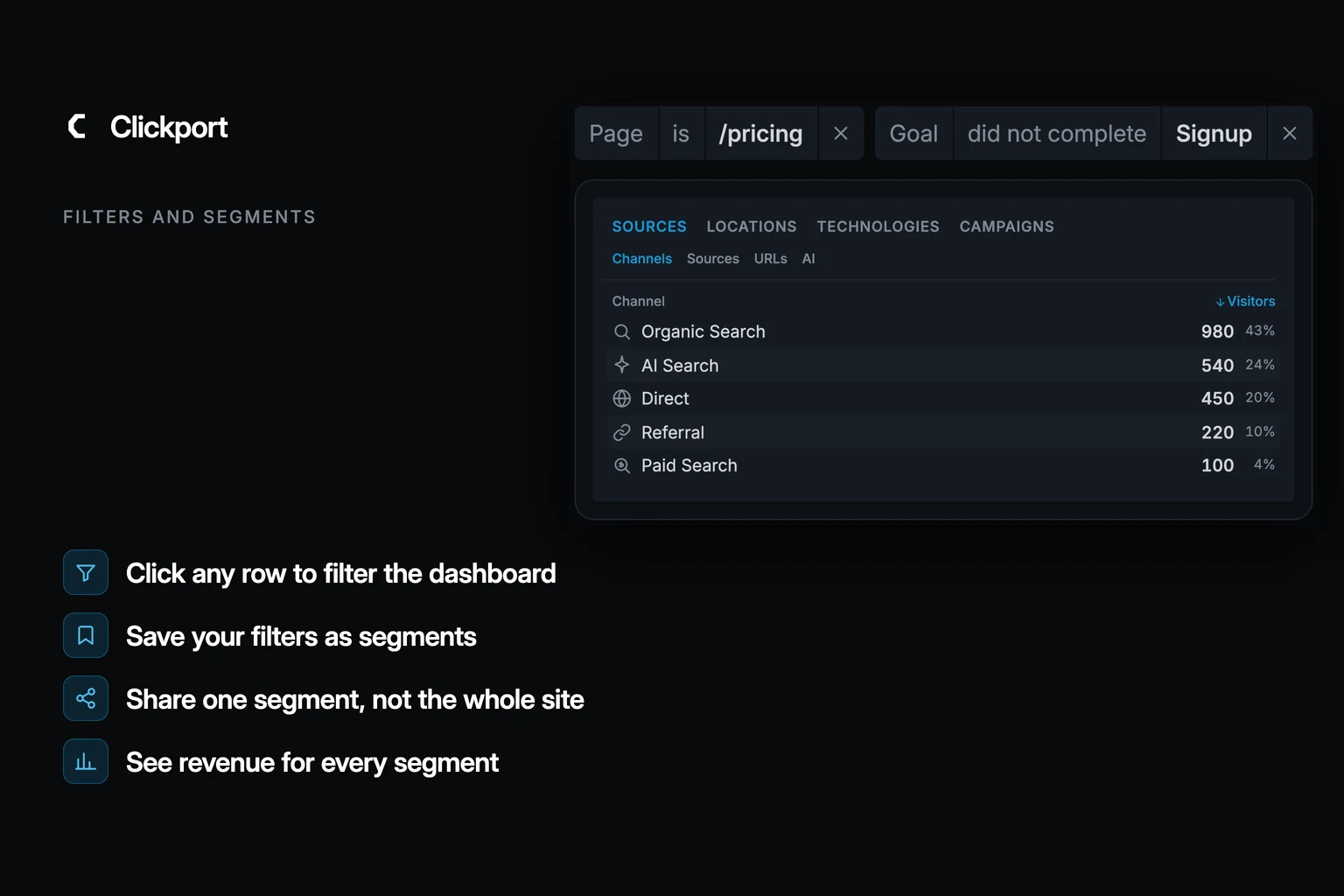
That's where filters and segments help. A filter lets you look at just one part of your traffic, such as visitors from a particular city, campaign or device. A segment saves one or more filters under a name, so you can come back to the same group of visitors whenever you need it.
Let's look at six examples. Each business has a different question that its overall visitor numbers can't answer: a removals firm, a tea shop, a scheduling app, a recipe blog, an online course provider and a marketing agency.
The businesses are made up. The reports are real Clickport reports, filled with the example numbers.
- A filter shows only the visits that match your chosen conditions.
- A segment saves a set of filters under a name so you can use it again.
- Several values in one filter mean or; several filters together mean and.
- Share links and guest invites can be limited to a single segment.
- Start with one question, and save it as a segment once you ask it regularly.
What's the difference between a filter and a segment?
A filter lets you narrow down your reports to answer a question.
Choose a field and a value, and the dashboard updates. The visitor numbers, charts, traffic sources, pages and countries all show only the visits that match.
In Clickport, you can add a filter using Filter in the top bar. You can also click a row in a report to filter by that value.
Each filter appears as a pill at the top of the dashboard, for example "Country is Germany". Click the x on the pill to remove it.
You can filter by three main things:
- Where visitors come from: traffic channel, source, referring website and campaign tags.
- Who visits your website: country, region, city, language, device, browser and operating system.
- What visitors do: pages they view, where they enter or leave your site, what they search for, which external links they click, which goals they complete, and whether they show signs of frustration, such as repeated clicks. You can also filter by custom properties that you send to Clickport.
A filter works on whole visits. For example, "Page is /pricing" includes every visit in which someone viewed your pricing page, along with everything else they did during that visit.
There are two simple rules for combining filters:
Several values in one filter mean OR. For example, "Country is Germany or Austria" includes visitors from either country.
Several filters together mean AND. For example, "Country is Germany" and "Device is Mobile" includes only visitors from Germany using a phone.
Most filters also support conditions such as "is not", "contains" and "does not contain".
A segment is simply a saved filter, or a saved combination of filters.
Once you've set up your filters, save them under a name. Next time, you can select that segment from the menu and switch on all those filters with one click. It appears as a single pill, such as "Segment is Newsletter".
Segments belong to the website, so everyone on your team can use the same ones.
You can also add more filters while a segment is on. These narrow down the results further without changing the saved segment.
The filters guide explains every filter option.
One thing to keep in mind: filters can only use information that your analytics records. If your campaign links don't have UTM tags, for example, Clickport can't tell which visits came from that campaign. The examples below assume that campaign links are tagged (how UTM tags work).
Halvik Removals: are quote requests coming from the area we serve?
Halvik Removals helps people move house around Bristol and Bath. Its moving checklist ranks well on Google, which has brought more visitors to the website.
But are those extra visitors potential customers?
The owner wants to know whether people from the local service area are also requesting quotes.
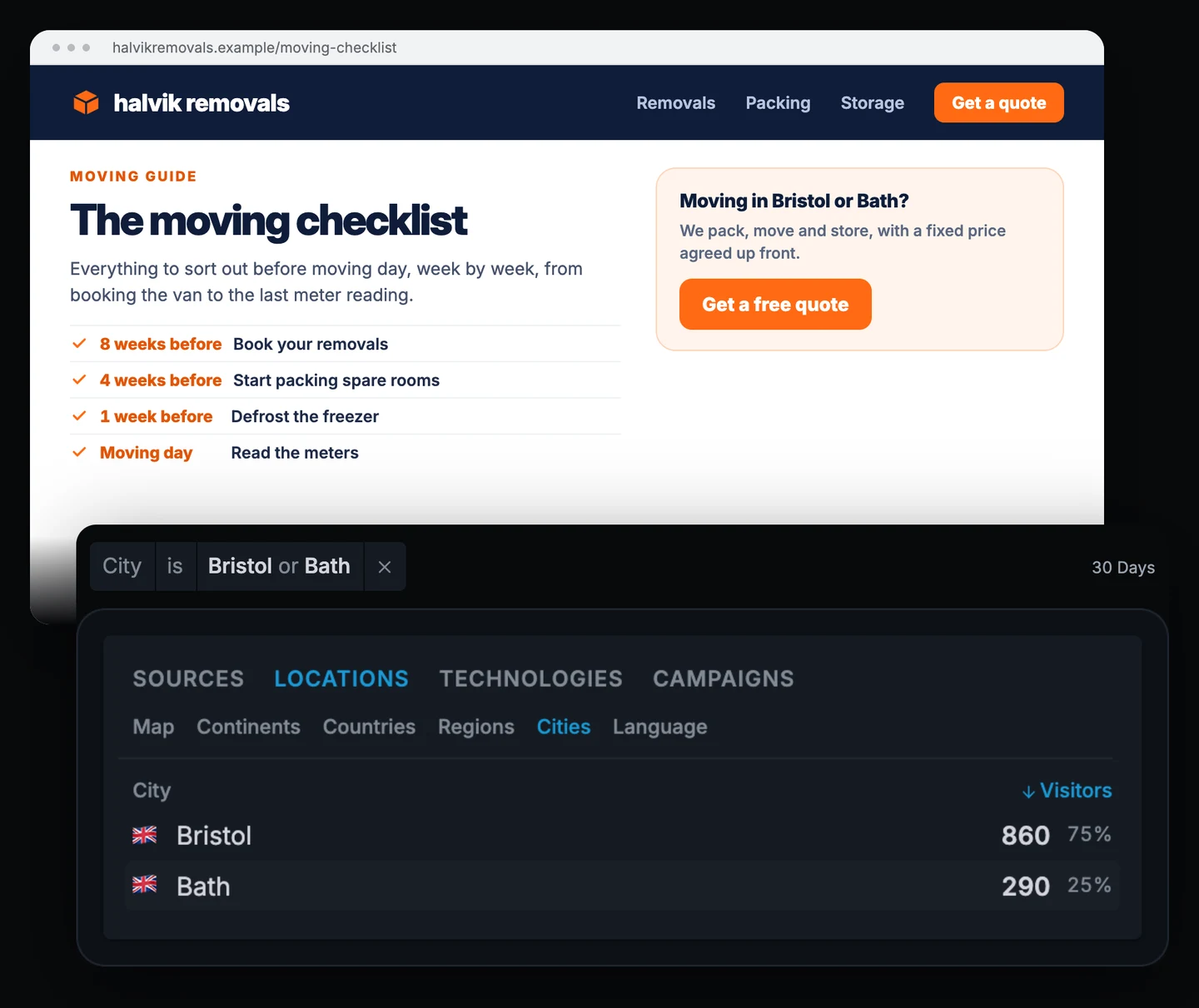
The Quote form submitted goal shows that 96 people sent a quote request in the last 30 days. That's out of 4,200 visitors.
Adding a City filter shows where those requests came from. The request rate is the share of visitors who sent the form:
| Visits | Visitors | Quote requests | Request rate |
|---|---|---|---|
| City is Bristol or Bath | 1,150 | 71 | 6.2% |
| Everyone else | 3,050 | 25 | 0.8% |
| All | 4,200 | 96 | 2.3% |
Bristol brings 860 of the local visitors and Bath 290. Most of the extra visitors came from outside the area. They found the moving checklist through Google, but they're unlikely to hire a removals company in Bristol.
The local visitors are much more interesting. They request a quote at a rate of 6.2%, almost three times the overall rate.
I'd save "City is Bristol or Bath" as a segment called Service area and check it every Monday.
This gives the owner a much better idea of how many potential customers visited the website that week. The Pages report can also show which pages local visitors looked at before requesting a quote.
Location is estimated from the visitor's IP address. Mobile networks can sometimes place a visitor in a nearby city, so these results are useful for comparisons, but not always exact.
Tidewell Tea: which newsletter emails bring in sales?
Tidewell Tea sends a newsletter twice a month. Every link in the emails includes the UTM tag utm_medium=email.
The owner has saved this filter as a segment called Newsletter. The filter is simply: Medium is email.
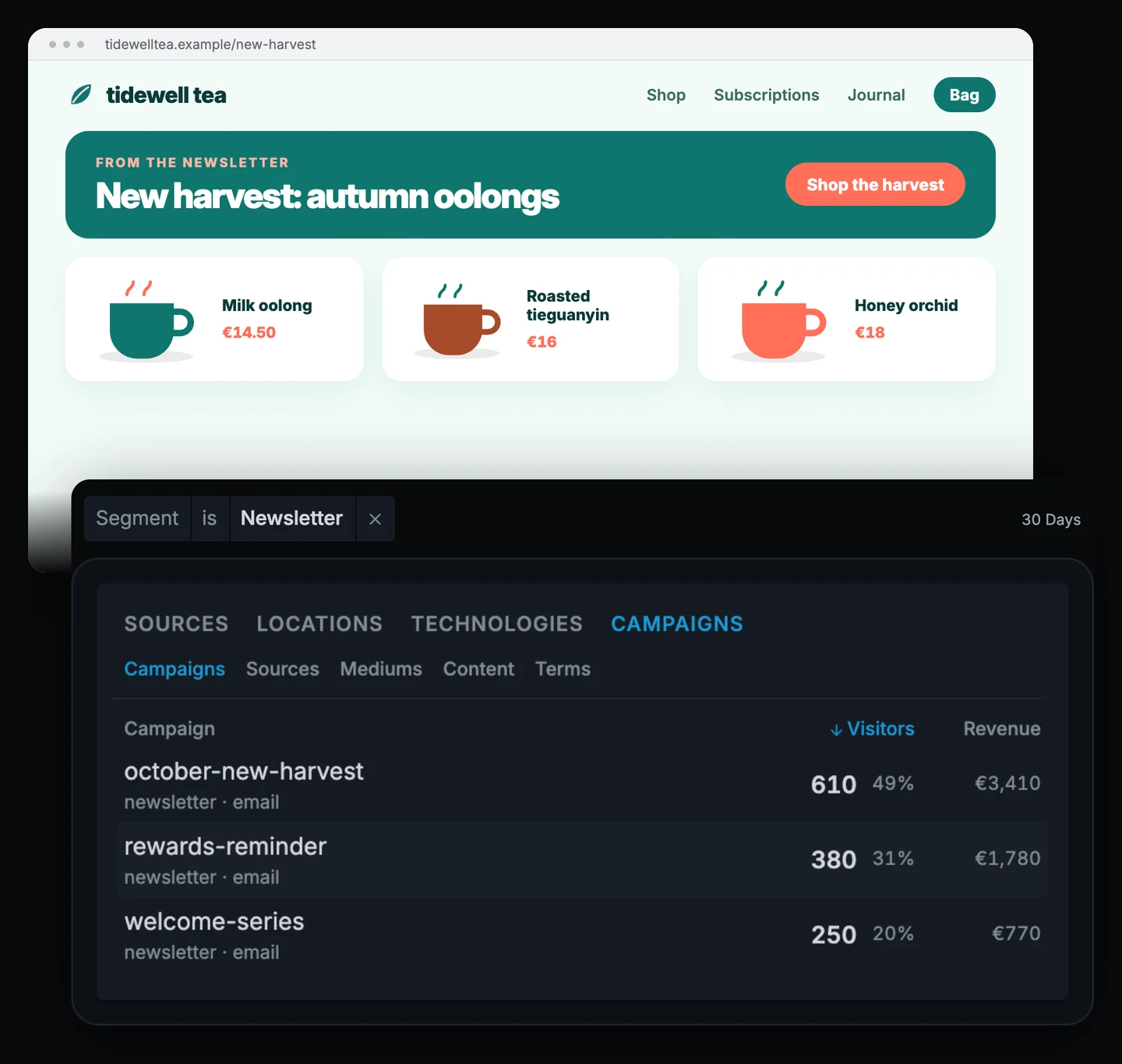
With the Newsletter segment on, the dashboard shows 1,240 visitors and €5,960 in revenue over the last 30 days.
Without it, the shop had 9,800 visitors and €18,400 in revenue.
So the newsletter brought in 13% of all visitors, but 32% of the revenue. That's a strong result.
Turn on Revenue in the KPI row, and the reports below it show how much money each row brought in. The Campaigns report breaks down the newsletter results:
| Campaign | Visitors | Revenue |
|---|---|---|
| october-new-harvest | 610 | €3,410 |
| rewards-reminder | 380 | €1,780 |
| welcome-series | 250 | €770 |
The new harvest email alone brought in more than half of the newsletter revenue.
The welcome series earns less, which is expected. It reaches new subscribers who may not have bought anything yet.
I'd add another filter, Device is Mobile, to see how many newsletter readers use their phones and whether they buy as often as other visitors. If phone users buy less often, it might be worth checking the product pages on a smaller screen before sending the next newsletter.
One important detail: Clickport counts revenue in the visit where the order was placed. If someone opens the newsletter, leaves the website and comes back two days later through Google to buy something, that sale is counted under Google.
Quorrel: who visits the pricing page but doesn't sign up?
Quorrel is a scheduling app with a free trial. Lots of people visit its pricing page, but the founder suspects that many leave without starting a trial.
Two filters help answer this:
- Page is /pricing
- Goal Signup did not complete
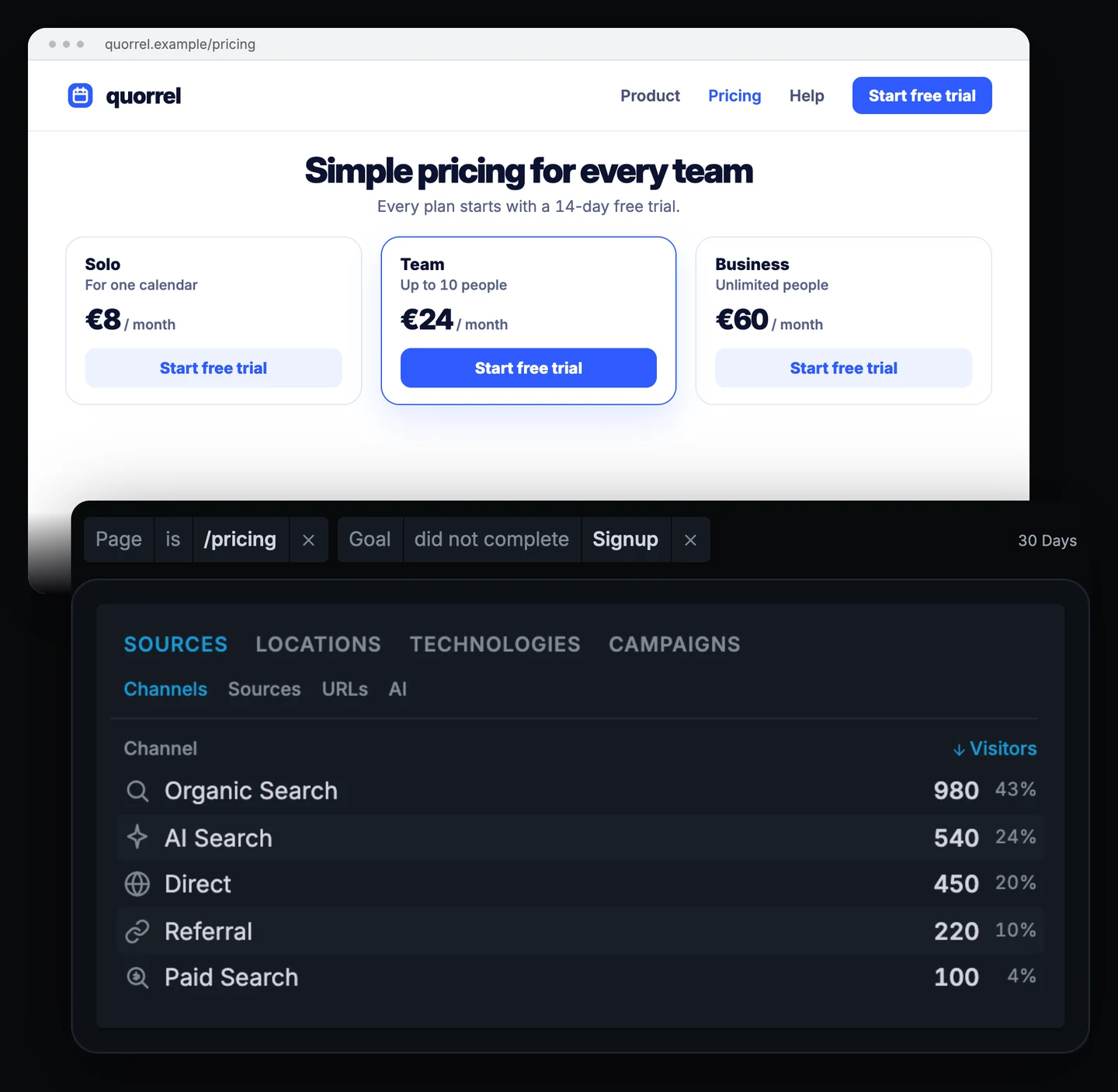
Over the last 30 days, 2,600 visitors viewed the pricing page. Of those, 310 signed up.
With both filters on, the Channels report shows where the other 2,290 visitors came from. The founder can then compare that with the signups from each channel:
| Channel | Viewed pricing | Signed up | Left without signing up |
|---|---|---|---|
| Organic Search | 1,120 | 140 | 980 |
| AI Search | 580 | 40 | 540 |
| Direct | 560 | 110 | 450 |
| Referral | 230 | 10 | 220 |
| Paid Search | 110 | 10 | 100 |
Only 6.9% of pricing-page visitors from AI Search signed up. That's about half the rate of visitors from the other channels combined (13.4%).
One possible reason is that these visitors arrive with a specific question from an AI chat. For example, they might want to know whether there's a plan for a team of three. If the pricing page doesn't answer that question, they leave.
I'd save these two filters as Pricing, no signup. The founder can then look at the entry pages to see where these visitors first arrive on the website.
There's one detail worth knowing: "did not complete" is counted per visit. If someone views the pricing page today and signs up tomorrow during a new visit, today's visit still counts as one without a signup.
Marrowby Kitchen: which recipes send readers to online shops?
Marrowby Kitchen is a recipe blog. It earns money through affiliate links, mostly to Amazon.
The owner wants to know which articles send readers to the shop.
The first step is a click goal called Amazon click, which counts clicks on any link whose domain contains "amazon" (how click goals work). A new goal also counts the clicks from before it was created, so there's no need to wait for fresh data.
The filter is then Goal did complete Amazon click. It shows 1,180 of the blog's 31,000 visitors over the last 30 days.
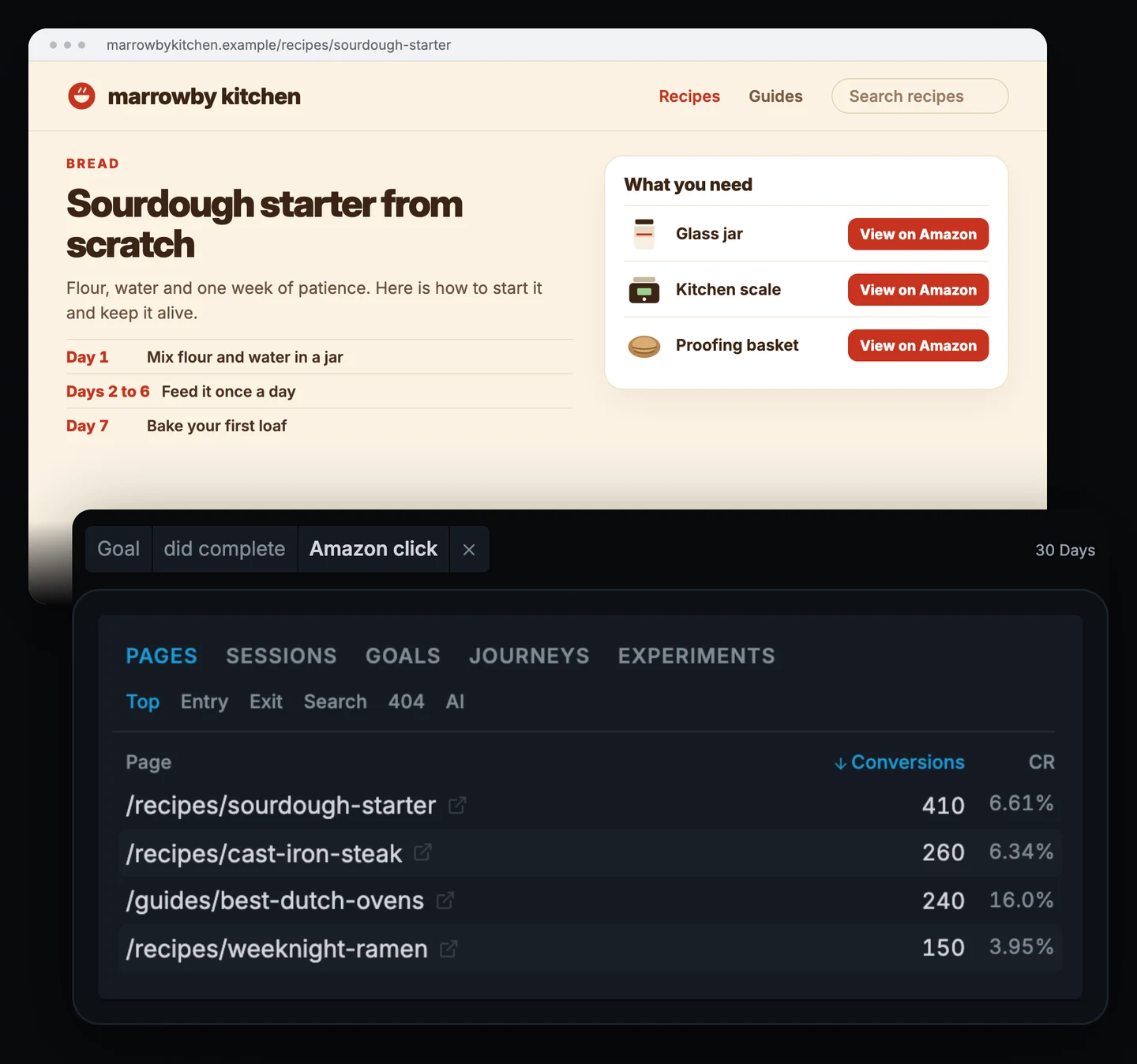
With a goal filter on, the Pages report shows two numbers for each page: how many of its readers clicked through to Amazon in the same visit, and what share of the page's readers that is (CR, the conversion rate):
| Page | Readers | Clicked to Amazon | Rate |
|---|---|---|---|
| /recipes/ |
6,200 | 410 | 6.61% |
| /recipes/ |
4,100 | 260 | 6.34% |
| /guides/ |
1,500 | 240 | 16.0% |
| /recipes/ |
3,800 | 150 | 3.95% |
The sourdough starter recipe sends the most readers to Amazon. That's probably because making sourdough requires several things, such as a jar, a scale and a proofing basket.
The Dutch oven guide is the more interesting result. It has the fewest readers of the four, but 16% of them click through to Amazon, more than twice the rate of any recipe. These readers are clearly interested in buying something.
I'd add a link to the guide from every recipe that uses a Dutch oven. That way, more readers can find it.
The Search tab under Pages provides another useful clue. It shows what people search for on the blog.
This month, "air fryer" is the most popular search term, but the blog doesn't have any air fryer recipes yet. That sounds like a good topic for the next article.
Remember that clicking an affiliate link doesn't mean someone bought something. The affiliate account shows what readers purchased. Clickport shows which pages they read on the way there.
Cadencia Academy: where do students get stuck?
Cadencia Academy sells online language courses. The founder has noticed that fewer people complete purchases on their phones and wants to find out why.
Are visitors having trouble with the checkout page?
Clickport records several signs that something might be going wrong, without recording visitors' screens (how signals work):
- Rage clicks: someone clicks the same spot several times in quick succession.
- Dead clicks: someone clicks something that doesn't respond.
- Script errors: a script on the page fails.
- Form abandons: someone starts filling in a form but doesn't send it.
Two filters narrow down the problem:
- Page is /checkout
- Signal is Rage clicks
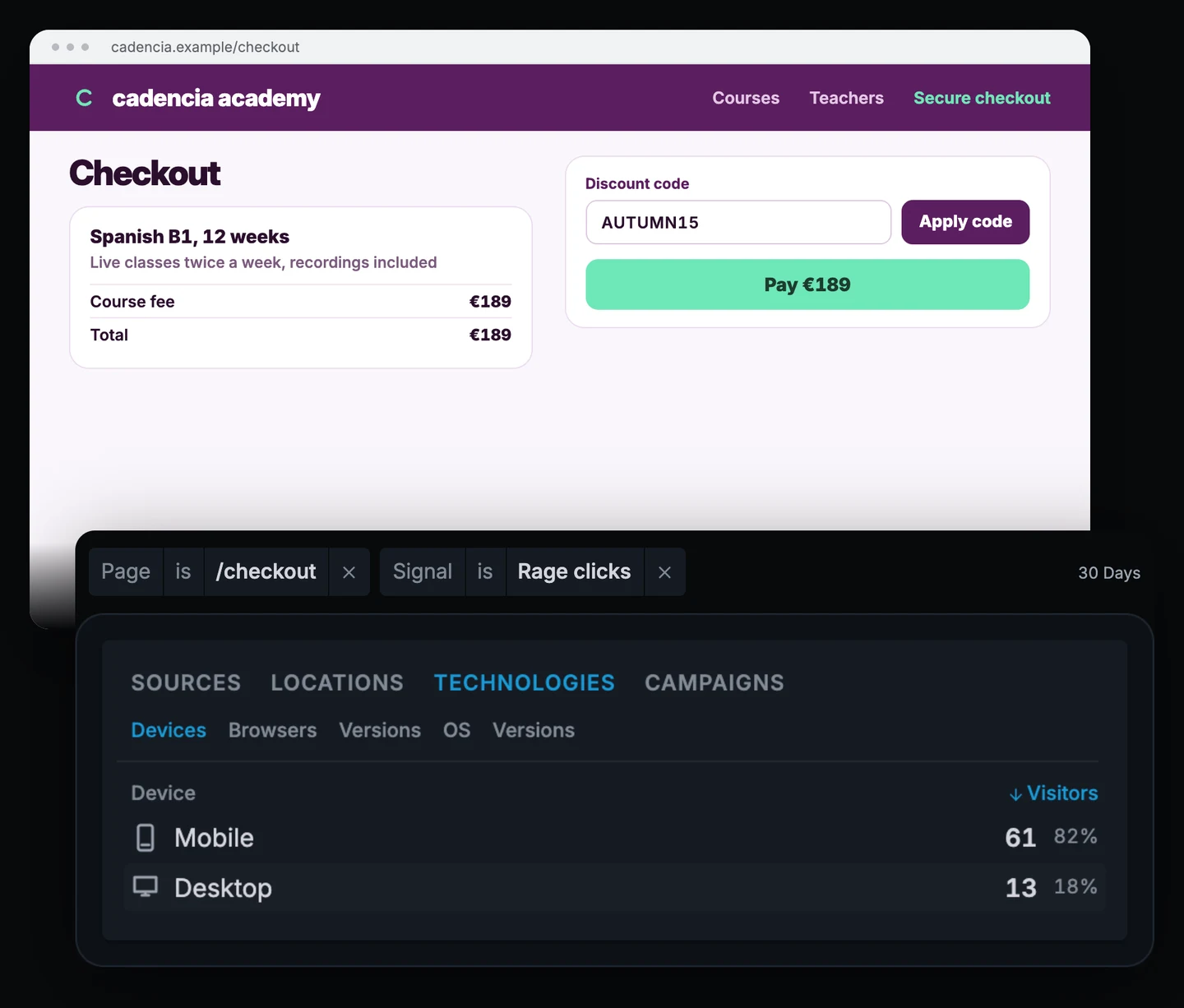
Of the 640 visitors who reached checkout in the last 30 days, 74 showed signs of rage clicking.
61 of them were using a phone. Only 13 were using a computer.
The Signals list under Sessions shows which page elements people clicked repeatedly. Almost everyone was clicking the same thing: the Apply code button.
It turns out that the phone keyboard covers the button after someone enters a discount code. Their next tap misses the button.
That's a useful discovery. Instead of guessing why fewer people complete checkout on their phones, the founder has found something specific to fix.
After fixing it, I'd save the filters as Checkout, rage clicks and check this segment after every change to the checkout page. If the number goes up again, something else might have gone wrong.
A rage click shows where someone got frustrated. Opening the page on the same type of device usually explains why.
Ostrander Pike: how can each person see only the reports they need?
Ostrander Pike is a small marketing agency. It manages advertising and search engine optimization (SEO) for an outdoor clothing shop.
Three people need access to the shop's analytics:
- The shop owner wants to see everything.
- The sales manager only needs advertising results.
- A freelance SEO consultant only needs organic search results.
The agency saves two segments on the shop's website:
- Paid campaigns: Channel is Paid Search or Paid Social.
- Organic Search: Channel is Organic Search.
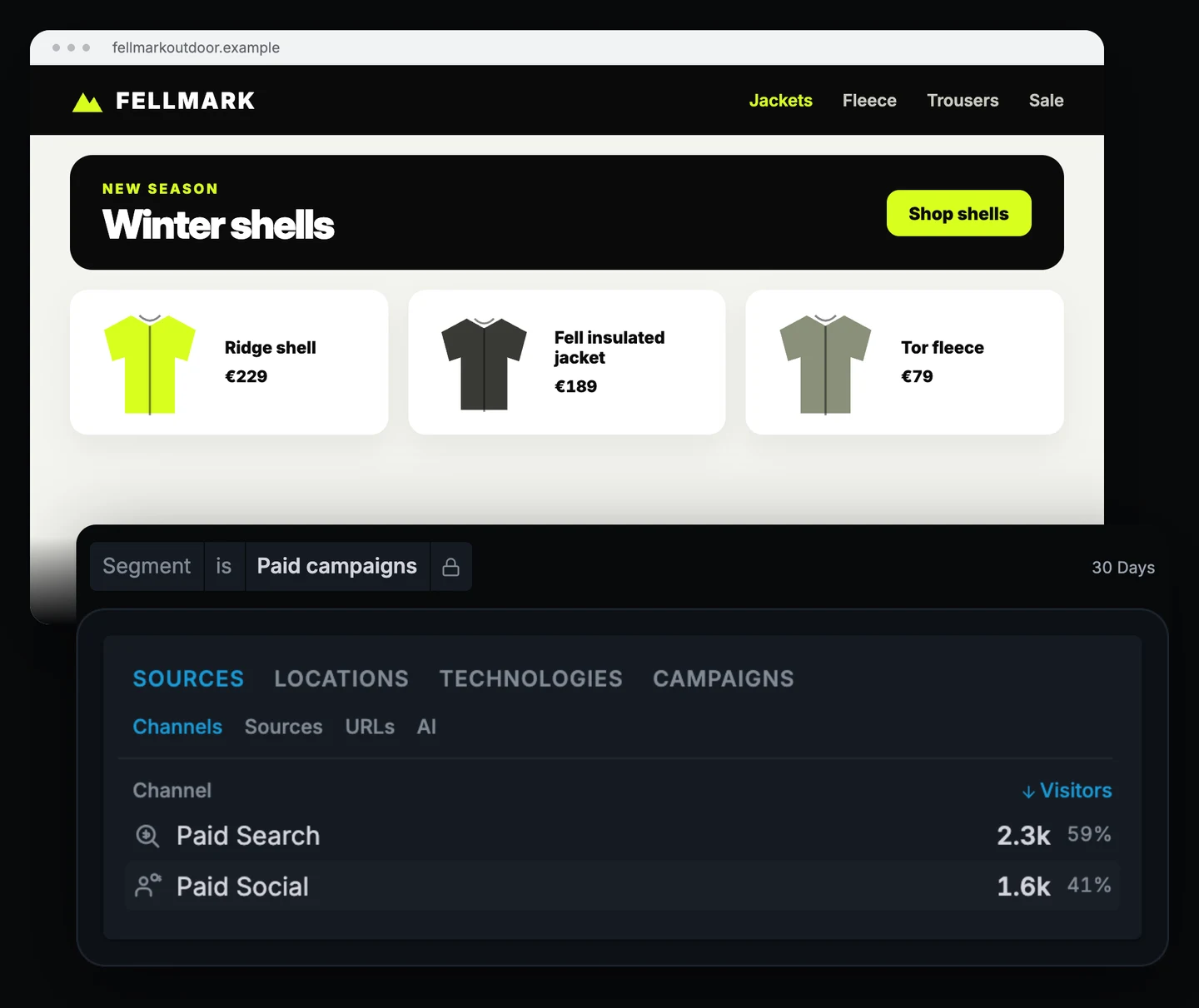
The sales manager gets a share link limited to the Paid campaigns segment. On that link, this month shows 2,340 visitors from Paid Search and 1,610 from Paid Social.
In the share link settings, this is the Limit to option. Anyone opening that link can only see paid traffic. They can add more filters, such as Country is France, but they cannot remove the saved segment. It appears as a locked pill.
The SEO consultant gets a Guest viewer invitation, limited to the Organic Search segment (how teams and guests work).
The shop owner keeps access to the complete dashboard.
This is much easier than sending screenshots every Monday. Everyone can look at the same live reports, and nobody needs to remember which filters to select.
Just make sure the segment contains exactly what you want to share. Anyone with the link can see all the data included in that segment (share links).
Which segments should almost every website save?
Most websites have a few questions they need to answer regularly. These five segments are a good starting point. You can change the names and filters to fit your own website.
| Segment | Filters | The question it answers |
|---|---|---|
| Phones | Device is Mobile | Does my website work well on phones? |
| Paid traffic | Channel is Paid Search or Paid Social | What do my ads bring in? |
| Newsletter | Medium is email | What happens after each newsletter? |
| Home market | Country is your country | How do visitors from my main market behave? |
| Close, but no | Page is your key page + Goal did not complete | Who came close to taking action but left? |
You don't need dozens of segments. Start with the questions that matter most to your business.
Where should you start?
Think about the question you ask yourself most often when looking at your website statistics.
Is the newsletter worth sending? Add the filter Medium is email and look at the revenue.
Why are sales down? Filter by Device is Mobile and compare the results with last month.
Which visitors could become customers? Filter by the countries or cities you serve.
The first time, just use filters to explore the numbers. When you find yourself setting up the same filters again, save them as a segment. Give it a name that makes it clear what it shows.
Clickport's filters and segments work across the dashboard, without cookies. Everyone on your team can use the same saved segments.
Try Clickport free for 30 days, with no credit card required. If you're switching from Google Analytics, our switching guide explains how to get started.
FAQ
What is a segment in web analytics?
A segment is a saved group of filters with a name. It shows only the visits that match those filters.
For example, you could create a segment for visitors using phones in Germany, or for people who came to your website through a newsletter. You can then return to these visitors whenever you want, without setting up the filters again.
What is the difference between a filter and a segment?
A filter narrows down your reports right now. You can remove it whenever you like.
A segment saves one or more filters under a name. You can switch it on again later with one click, and everyone on your team can use it.
Can I share a segment with a client without showing them everything?
Yes. You can limit a share link or a guest invitation to a single segment.
The person receiving it can only see visits included in that segment. They can add more filters to narrow down the results, but they cannot remove the original segment.

Comments
Loading comments...
Leave a comment